Gaming laptops are powerhouses, but intense sessions can quickly turn them into miniature furnaces, leading to frustrating performance drops, system instability, and even long-term hardware damage. For the busy US gamer, balancing work, family, and precious gaming time, nothing is more annoying than a rig that simply cannot keep up due to overheating. This comprehensive guide on how to cool your gaming laptop is specifically designed for you, the dedicated enthusiast who demands peak performance without the hassle. We will dive into practical, actionable tips and tricks, ranging from simple environmental adjustments to advanced hardware solutions. Our aim is to ensure your machine stays frosty, framerates remain consistently high, and your overall gaming experience is smooth and uninterrupted. Discover how to effectively extend your laptop's lifespan, optimize its thermal management, and maintain that crucial competitive edge, all while making smart choices that respect your budget and time. Say goodbye to thermal throttling and hello to uninterrupted, high-fidelity play sessions, enabling you to enjoy your favorite social games or dive into the latest AAA titles without a hitch. This article focuses on real-world solutions that busy adult gamers can implement today.
Related games- How to Master GTA V Character Creator Features
- Guide to Blackpink Posters on Roblox: Your K-Pop World
What are the primary reasons a gaming laptop overheats?
Gaming laptops frequently overheat due to powerful components packed into confined spaces, generating significant heat. Key culprits include dust buildup obstructing airflow in fans and heatsinks, dried-out or low-quality thermal paste failing to transfer heat effectively from the CPU and GPU, and poor ventilation from gaming on soft surfaces like beds or in hot environments. Intense game sessions push hardware to its thermal limits, making efficient heat dissipation critical.
How can I check my gaming laptop's temperature?
You can check your gaming laptop's temperature using various software tools. Popular options include HWMonitor, MSI Afterburner, Core Temp, and NZXT CAM. These utilities provide real-time readings for your CPU, GPU, and other components. It's best to monitor temperatures while gaming to get an accurate assessment of performance under load. Generally, anything consistently above 85-90 degrees Celsius for CPU/GPU under load is a cause for concern.
Are cooling pads actually effective for gaming laptops?
Yes, laptop cooling pads can be quite effective, especially for gaming laptops. A good cooling pad provides supplementary airflow directly to your laptop's intake vents, helping to dissipate heat more efficiently. While they won't fix severe internal issues like clogged fans, a well-placed cooling pad can typically lower temperatures by a few critical degrees, reducing thermal throttling and improving overall performance during long gaming sessions. Look for pads with adjustable fan speeds and proper vent alignment.
When should I consider reapplying thermal paste to my CPU and GPU?
You should consider reapplying thermal paste to your CPU and GPU every 1 to 2 years, or sooner if you notice a consistent and significant increase in your laptop's operating temperatures despite other cooling efforts. Factory-applied thermal paste can degrade and dry out over time, losing its effectiveness. Replacing it with a high-quality aftermarket paste can lead to substantial temperature drops and improved performance, extending the lifespan of your components.
Can undervolting really help reduce laptop heat without losing performance?
Absolutely, undervolting can significantly help reduce laptop heat without sacrificing performance, and sometimes even offers a slight gain. By reducing the voltage supplied to your CPU and GPU while maintaining clock speeds, components draw less power and thus generate less heat. This leads to lower operating temperatures and can prevent thermal throttling, allowing your system to maintain higher boost clocks for longer periods. It requires careful testing but is a highly effective software-based solution.
What's the best way to clean my gaming laptop's fans and vents?
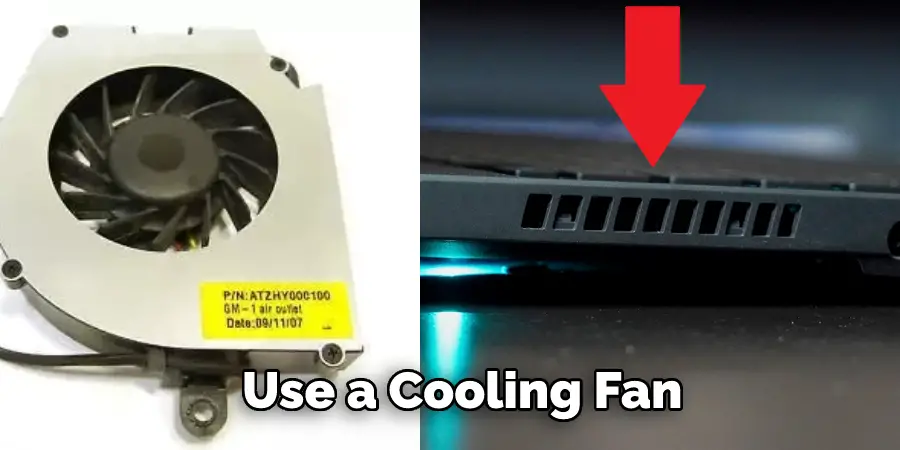
The best way to clean your gaming laptop's fans and vents involves using compressed air. For external vents, short bursts of compressed air can remove surface dust. For a deeper clean, carefully open your laptop (consulting a guide for your specific model) and use compressed air to clear dust from the fan blades and heatsinks. Crucially, hold the fan blades steady with a finger or small tool while spraying to prevent them from over-spinning and damaging their bearings.
Does elevating my laptop make a significant difference in cooling?
Yes, elevating your laptop makes a very significant difference in cooling. Gaming laptops typically draw cool air from their underside. When placed flat on a desk, or worse, a soft surface, these intake vents can be partially or completely blocked. Elevating your laptop, even by an inch or two with a stand or simple props, allows for much better airflow underneath, improving the efficiency of the internal cooling system and reducing overall temperatures. It's a fundamental, free, and effective cooling tip.
Hey fellow gamers! Ever been in the middle of an epic boss battle, only for your gaming laptop to suddenly feel like it's auditioning for a spot in a volcano documentary? You're not alone. The dreaded thermal throttling, where your precious framerates plummet because your machine is too hot to handle the action, is a common pain point for many of us. With 87% of US gamers playing regularly and a significant portion dedicating 10+ hours a week to their passion, maintaining a cool rig is crucial for enjoyment and competitive edge. Whether you're unwinding after a long day, building skills in an esports title, or simply socializing with friends on Discord, an overheated laptop can ruin the fun and even shorten your hardware's life. Mobile gaming might dominate the market in terms of raw numbers, but for PC and console cross-play enthusiasts, peak performance is non-negotiable.
You balance work, family, and life, and your gaming time is valuable. You don't have hours to troubleshoot complex issues, nor do you want to waste money on ineffective solutions. This guide is your go-to resource for understanding exactly how to cool my gaming laptop, offering practical, budget-friendly, and effective strategies that busy adult gamers can implement right now. We're cutting through the hype to give you real, actionable advice to keep your machine frosty, ensuring smooth gameplay, extended hardware longevity, and more enjoyable gaming sessions. Let's dive into making your gaming laptop a cool, calm, and collected powerhouse once again.
Why Does My Gaming Laptop Get So Hot Anyway
Gaming laptops push powerful components like the CPU and GPU to their limits, generating a substantial amount of heat in a confined space. Unlike desktop PCs with ample airflow and large coolers, laptops have compact designs that make thermal management a constant challenge. When components get too hot, they automatically slow down their performance a process called thermal throttling to prevent damage. This is the primary reason for sudden frame drops and stuttering during intense gaming sessions. Factors like dust accumulation in fans, old thermal paste, and poor ambient room conditions all contribute to this heat buildup. Understanding these core reasons is the first step in learning how to effectively cool my gaming laptop.
Think of your laptop's cooling system as a miniature, high-performance engine. Just like a car, it needs clear pathways for air intake and exhaust, and fresh lubricants for optimal operation. Over time, these pathways get clogged, and the lubricants (thermal paste) dry out, reducing efficiency. Modern games demand more from hardware, leading to higher heat generation. If your laptop isn't designed with a robust cooling system or if that system isn't maintained, it will struggle. It's not just about performance; prolonged high temperatures can shorten the lifespan of your components, leading to costly repairs or replacements down the line. Investing a little time in cooling now can save you a lot of headache and money later.
Quick Fixes How to Immediately Lower Your Laptop s Temperature
When your laptop feels like a hot plate, there are several immediate steps you can take to bring temperatures down. First, elevate your laptop. Placing it on a stand or even a couple of books to raise the back allows air to circulate underneath, significantly improving airflow to the intake vents. Close any unnecessary background applications and browser tabs, as these consume CPU and RAM resources, generating additional heat. If you're using a dedicated cooling pad, ensure it's turned on and positioned correctly to direct air into your laptop's vents. Lastly, move your laptop to a cooler surface, avoiding soft surfaces like beds or laps which can block vents and trap heat. These simple adjustments can offer instant relief to an overheating machine.
Additionally, check your power settings. While in game, you might want performance mode, but if you're just browsing or doing light tasks, switching to a 'balanced' or 'power saver' profile can reduce component workload and thus heat. Many modern gaming laptops also come with dedicated software for fan control. If your laptop is getting hot, manually setting your fans to maximum speed for a short period can help shed excess heat. Remember, these are quick fixes to alleviate immediate heat, but for long-term solutions on how to cool my gaming laptop, you'll need to look at more comprehensive strategies. Even something as basic as ensuring your AC or a room fan is pointed towards your setup can make a noticeable difference during a long gaming session, especially in warmer climates.
Hardware Upgrades What Internal Changes Can Improve Cooling
For those comfortable with a screwdriver and a bit of DIY, internal hardware maintenance and upgrades can dramatically improve your laptop's cooling. The most impactful change is reapplying thermal paste to your CPU and GPU. Over time, the factory-applied paste can dry out, losing its effectiveness in transferring heat from the chip to the heatsink. Replacing it with a high-quality aftermarket thermal paste or even a liquid metal solution (if your laptop is compatible and you're confident in its application) can drop temperatures by several degrees. This is a crucial step for serious gamers looking to optimize their thermal performance and extend their laptop's life, and one of the most effective methods when figuring out how to cool my gaming laptop permanently.
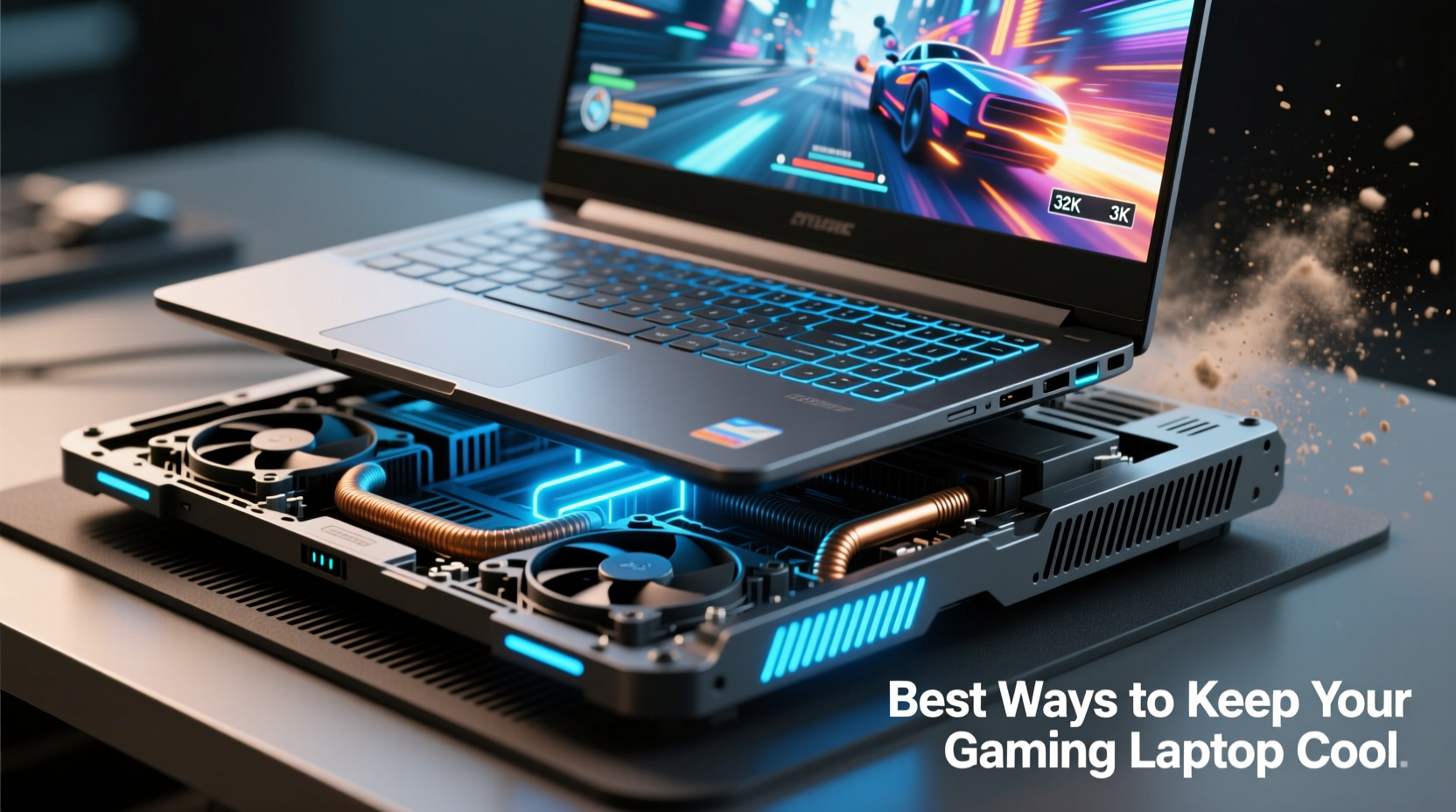
Another consideration is cleaning internal components. Dust acts as an insulator, trapping heat and impeding airflow. Carefully opening your laptop and using compressed air to clear dust from the fans, heatsinks, and vents can restore much of its original cooling efficiency. While actual fan upgrades are often difficult or impossible due to proprietary designs, ensuring your existing fans are clean and functioning optimally is key. Some advanced users might consider 'modding' their laptop's bottom panel to improve airflow, though this can void warranties. Always research specific guides for your laptop model before attempting internal maintenance to ensure you have the right tools and knowledge. These deeper interventions are often what truly unlocks consistent, high-performance cooling.
External Cooling Solutions Are Laptop Cooling Pads Worth It
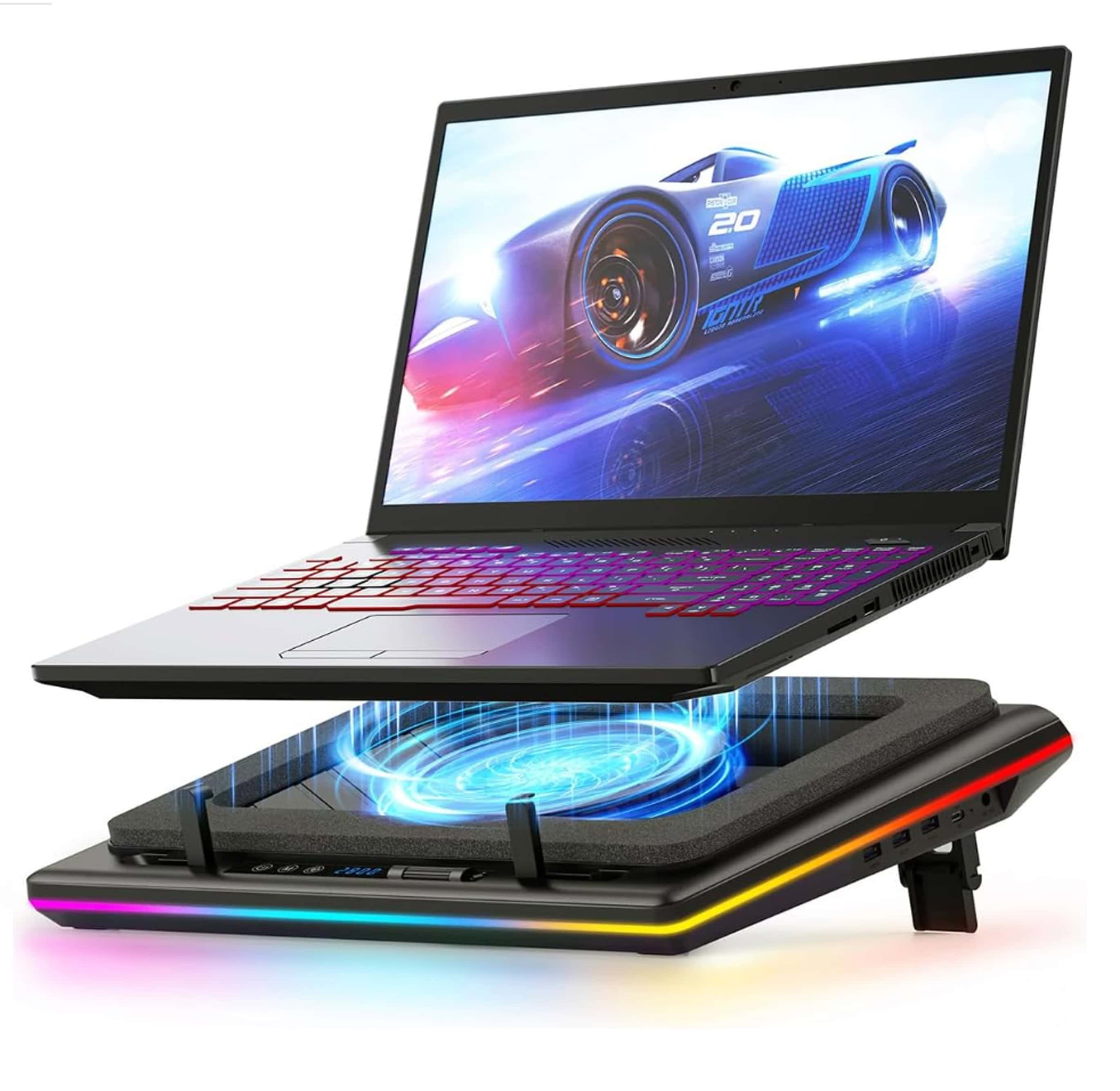
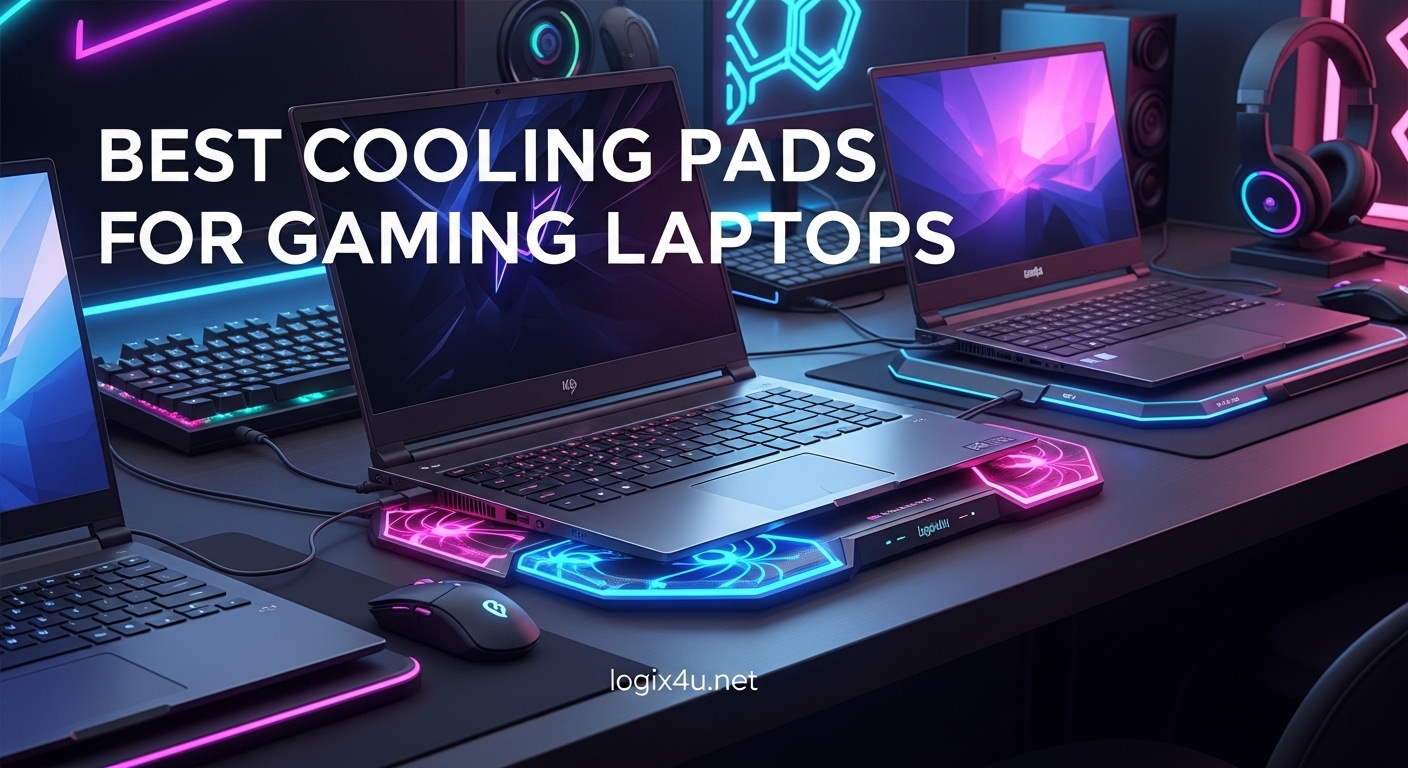
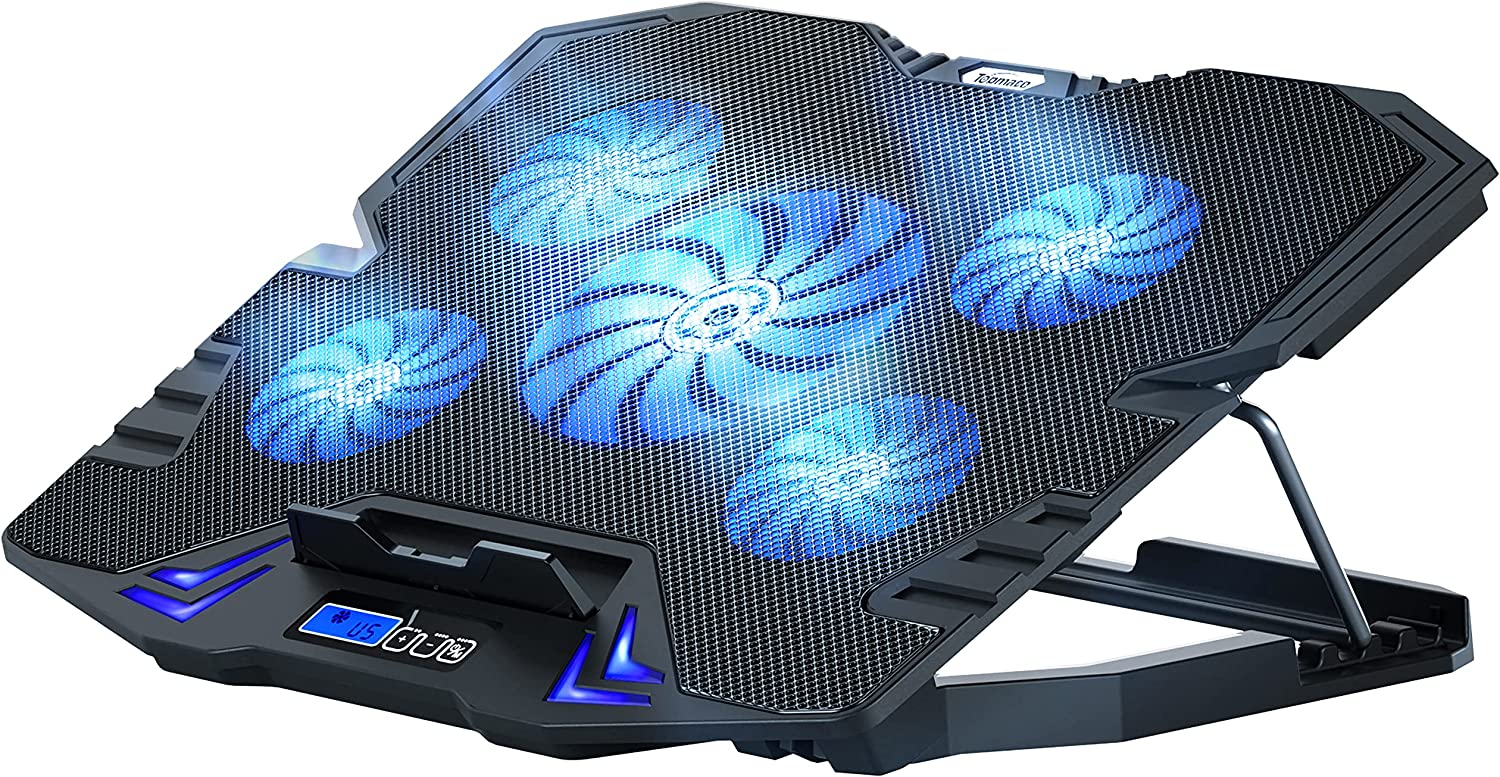
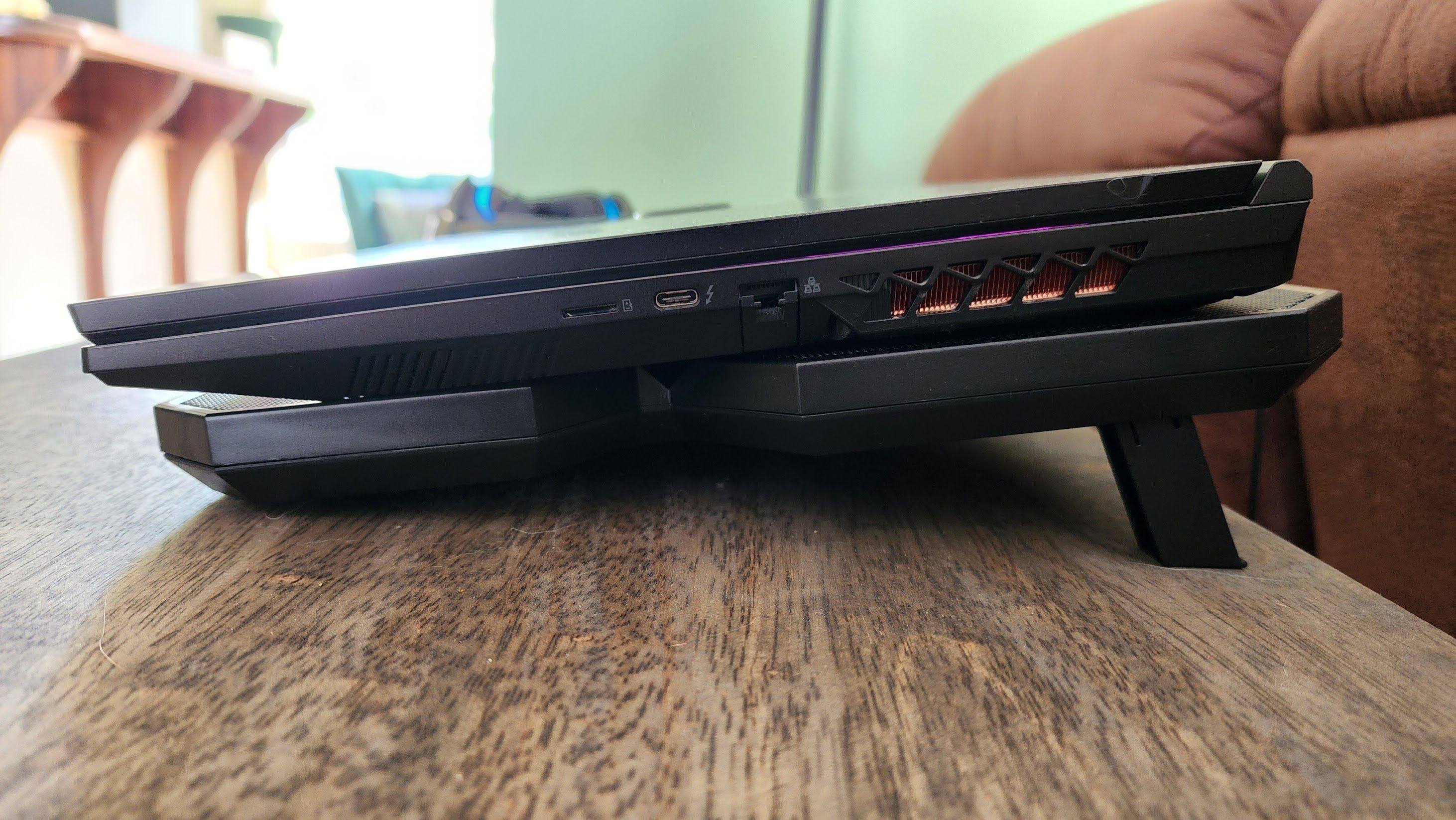
Laptop cooling pads are a popular external solution, and yes, they can definitely be worth it, especially for gamers. A good cooling pad works by providing additional airflow directly to your laptop's intake vents, helping to dissipate heat more effectively. They often feature large fans that push cool air upwards, lifting your laptop to create better ambient circulation. While a cheap, poorly designed pad might offer minimal benefit, a quality cooling pad with adjustable fan speeds and proper vent alignment for your specific laptop model can lower temperatures by a few critical degrees. This can be the difference between experiencing thermal throttling and enjoying consistent framerates. When considering how to cool my gaming laptop, a cooling pad is often the first external accessory many gamers invest in.
When choosing a cooling pad, look for one that matches the size of your laptop and ideally allows you to position the fans directly under your laptop's hottest spots, usually the CPU and GPU areas. Some pads offer multiple small fans, while others have one or two large fans; larger fans tend to be quieter for the same amount of airflow. Adjustable height is also a plus, as it improves ergonomics and further enhances airflow. While a cooling pad won't solve severe internal dust or thermal paste issues, it's an excellent supplementary tool to maintain lower operating temperatures during those long gaming sessions or when your ambient room temperature is higher. For US gamers who spend many hours in virtual worlds, a good cooling pad can be a small investment with significant returns in comfort and performance.
Software Tweaks How to Optimize Fan Speeds and Performance
Beyond physical solutions, software tweaks offer powerful ways to manage your gaming laptop's heat. Many gaming laptop manufacturers provide proprietary software (e.g., Armoury Crate, Legion Vantage, Alienware Command Center) that allows you to monitor temperatures and customize fan curves. Taking control of your fan speeds and setting them to a more aggressive profile during gaming can significantly improve cooling, preventing throttling before it even starts. While this might increase fan noise, the trade-off for stable performance is often worth it for dedicated gamers. Learning to utilize these tools effectively is a key part of mastering how to cool my gaming laptop. These utilities also typically allow you to switch between performance profiles, giving you granular control over power limits.
Another advanced software technique is undervolting your CPU and sometimes GPU. Undervolting reduces the voltage supplied to your components without necessarily reducing their clock speed. Lower voltage means less power consumption, which in turn means less heat generation. A properly undervolted CPU can run several degrees cooler with no perceivable performance loss, and sometimes even a slight gain due to reduced throttling. Tools like Intel XTU or ThrottleStop are commonly used for CPU undervolting, while MSI Afterburner can be used for GPU undervolting or custom fan curves. This process requires careful testing to ensure stability, but it's one of the most effective software methods for long-term thermal management, beloved by performance-conscious gamers who are always seeking an edge without buying new hardware. It's a prime example of optimizing value for money.
Environmental Factors How Does My Gaming Space Affect Cooling
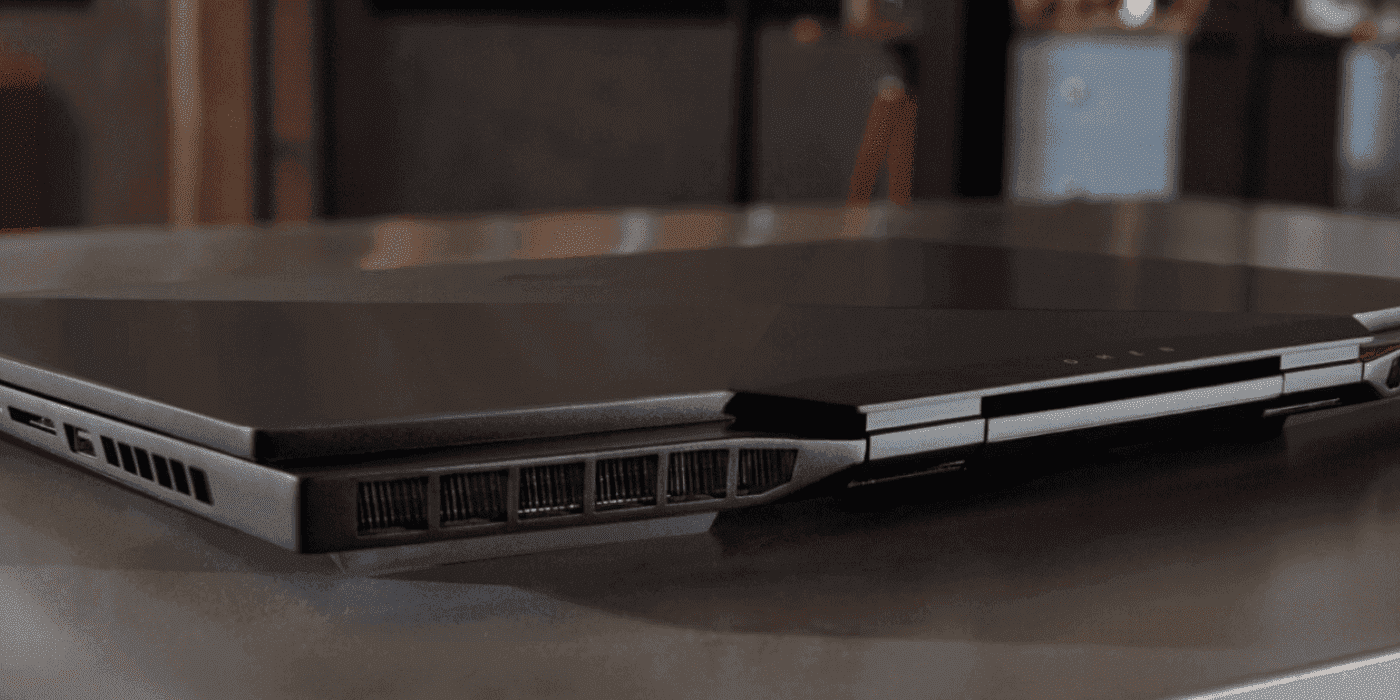
Your gaming environment plays a surprisingly significant role in your laptop's ability to stay cool. A hot room means your laptop's cooling system has to work much harder to dissipate heat into an already warm atmosphere. Aim for a cooler ambient room temperature; using air conditioning or even a dedicated room fan can make a big difference. Placement of your laptop is also critical: avoid direct sunlight, which can quickly heat the chassis. Ensure there's adequate space around your laptop for air to flow freely, especially around exhaust vents. Don't block these vents with nearby objects like books, monitors, or even walls. Optimal airflow around your machine is foundational when addressing how to cool my gaming laptop effectively.
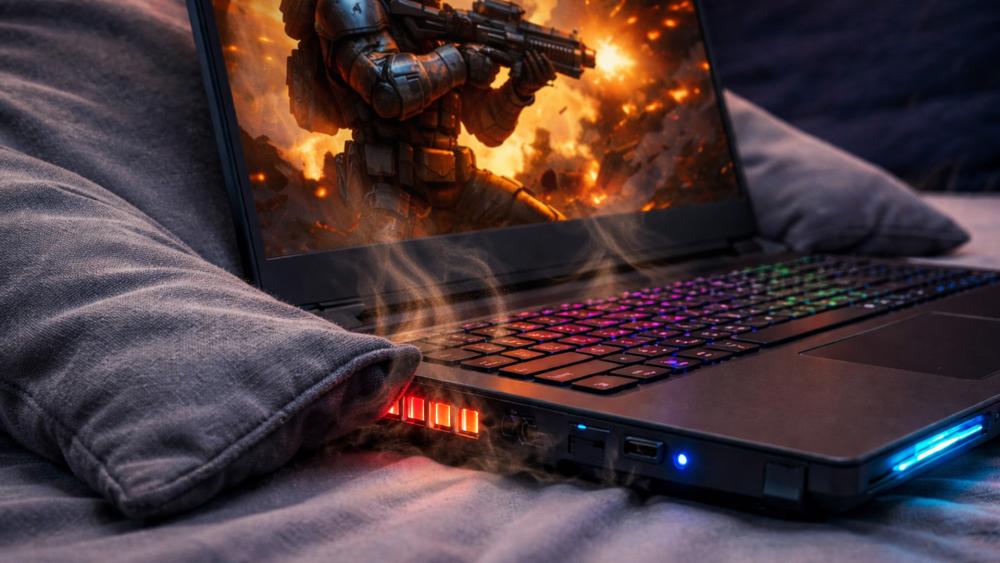
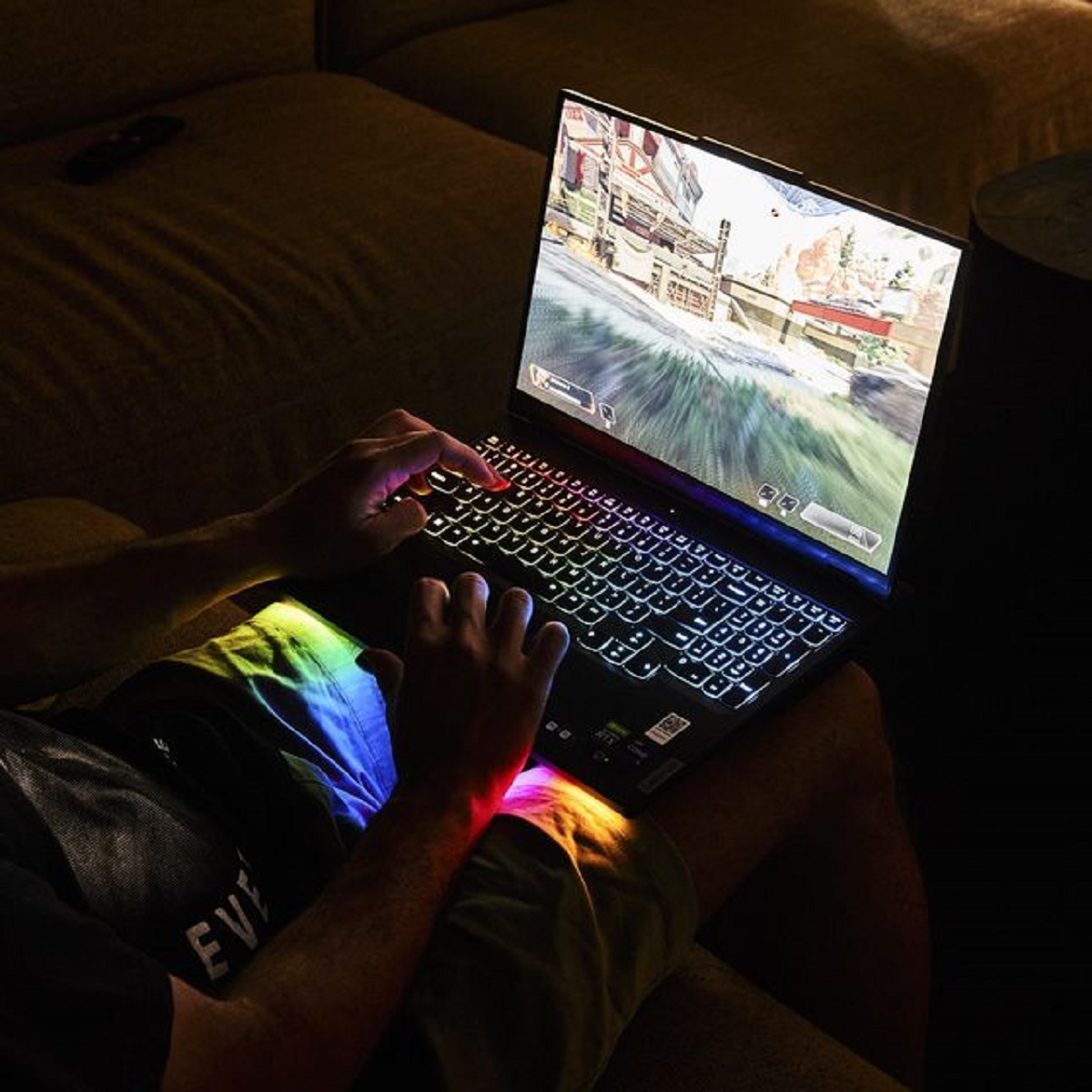
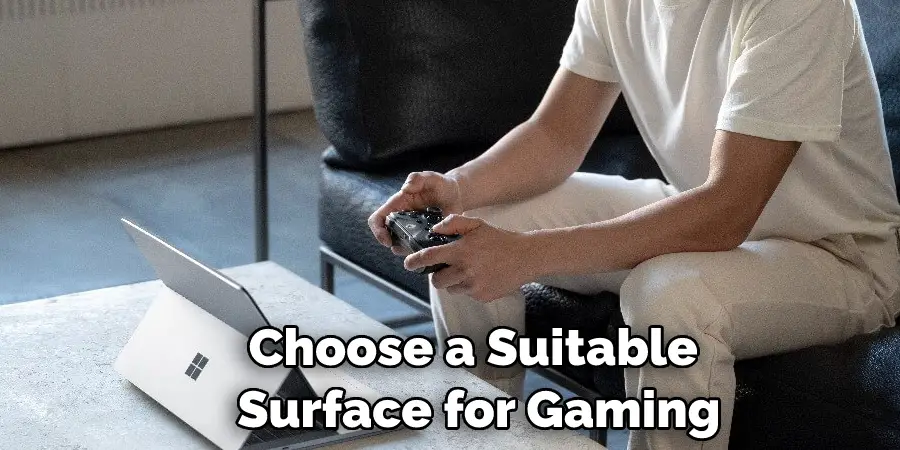
Additionally, the surface your laptop sits on matters. Hard, flat surfaces like a desk are ideal, as they allow proper airflow underneath the laptop. Soft surfaces such as blankets, pillows, or your lap can completely obstruct the intake vents, trapping heat and leading to rapid temperature increases. Even if you're using a cooling pad, placing it on a stable, hard surface maximizes its effectiveness. Consider the general cleanliness of your gaming area too; a dust-free environment means less dust is drawn into your laptop's fans. These simple environmental considerations are often overlooked but contribute significantly to a laptop's thermal health, ensuring your stress relief from gaming isn't replaced by stress over overheating hardware.
Maintenance Matters How Often Should I Clean My Laptop
Regular maintenance is non-negotiable for keeping your gaming laptop cool and extending its lifespan. Think of it as preventative care for your high-performance machine. The frequency of cleaning depends on your environment and usage. If you game frequently in a dusty home or with pets, you might need to clean more often. As a general rule, a superficial cleaning of external vents with compressed air can be done monthly. A deeper internal cleaning, involving opening the laptop to clear fans and heatsinks, should ideally be performed every 6 to 12 months. This scheduled upkeep is critical for any gamer wondering how to cool my gaming laptop for the long haul.
Reapplying thermal paste is another key maintenance task. While not as frequent as cleaning, most gamers find a significant benefit in replacing thermal paste every 1 to 2 years, or sooner if you notice a consistent increase in operating temperatures. The original paste can degrade over time, losing its thermal conductivity. Proper maintenance prevents dust buildup from insulating components and ensures efficient heat transfer, making your laptop run cooler and perform better. For busy adults, scheduling this maintenance prevents unexpected performance issues and saves money on potential repairs down the line, allowing you to enjoy your limited gaming time without technical interruptions. It's about value for money and consistent performance.
Smart Gaming Habits How to Play Smarter Not Hotter
Beyond hardware and software, adopting smart gaming habits can significantly contribute to keeping your laptop cool. Avoid excessively long gaming sessions without breaks; giving your laptop a short rest allows components to cool down naturally. Consider lowering graphics settings slightly if you're consistently hitting high temperatures, especially for visually demanding AAA titles. While everyone wants max settings, a stable framerate at medium-high is far better than a stuttering mess at ultra. Many games now offer excellent optimization settings, letting you balance visuals with performance. This proactive approach helps when learning how to cool my gaming laptop by reducing the thermal load.
Another tip is to ensure your laptop is well-ventilated during transportation. Avoid putting it into tight bags immediately after a heavy gaming session, as trapped heat has nowhere to go. If you're using an external monitor, ensure your laptop's lid is open when gaming, as closing it can block crucial exhaust vents near the hinge. Furthermore, be mindful of what else your laptop is doing. Streaming your gameplay, running Discord, and having multiple browser tabs open simultaneously all add to the workload and heat. Prioritizing essential applications during gaming can lighten the load. By combining these habits with the other cooling strategies, you're not just preventing overheating; you're also building a sustainable and enjoyable gaming lifestyle.
FAQ Section
What is thermal throttling and how does it affect my gaming laptop
Thermal throttling is when your laptop's CPU or GPU automatically reduces its clock speed to lower operating temperatures and prevent damage. This results in significant drops in framerate, stuttering, and overall poor gaming performance. It's a safeguard mechanism but indicates your laptop is struggling to cool itself.
Can I use any compressed air to clean my laptop fans
Yes, you can use standard compressed air cans. However, ensure you hold the can upright to prevent propellant from spraying out, and use short bursts. Crucially, hold the fan blades in place with a finger or a small tool to prevent them from spinning too fast, which can damage the bearings.
Is it safe to undervolt my gaming laptop
Undervolting is generally safe if done carefully and incrementally. It reduces voltage, not performance, but incorrect settings can lead to system instability and crashes. Always test thoroughly after each adjustment. It will not permanently damage your hardware if done properly, and many gamers find it very beneficial.
How important is my room temperature for laptop cooling
Your room temperature is very important. A cooler ambient environment means your laptop's cooling system has less work to do to dissipate heat. Even a few degrees difference in room temperature can translate to several degrees cooler inside your laptop, improving performance and comfort during long gaming sessions.
Should I game on a hard or soft surface
Always game on a hard, flat surface like a desk. Soft surfaces such as beds, blankets, or pillows block your laptop's intake vents, trapping heat and severely impeding airflow, leading to rapid overheating. A hard surface allows necessary air circulation underneath.
Does raising my laptop help with cooling
Yes, significantly. Elevating your laptop, even slightly, allows more air to flow underneath and reach the intake vents, improving natural convection and the efficiency of your internal fans. This simple trick can noticeably reduce temperatures without any additional cost or hardware.
Conclusion
Keeping your gaming laptop cool is more than just a technical chore; it's an essential part of maintaining your investment, optimizing your valuable gaming time, and ensuring a consistently enjoyable experience. From simple environmental adjustments and smart gaming habits to hands-on internal maintenance and advanced software tweaks like undervolting, there's a spectrum of solutions available for every level of comfort and budget. For the busy US gamer who values relaxation, skill-building, and social play, a well-cooled machine means less frustration and more fun.
Remember, proactive care like regular cleaning and thermal paste reapplication can prevent bigger problems down the line, saving you money and extending the life of your hardware. Don't let overheating cut short your epic quests or competitive matches. Implement these strategies, find what works best for your setup, and reclaim peak performance. What's your biggest gaming challenge when it comes to keeping your rig cool? Comment below and share your best tips with the community!
Optimizing environmental setup for better airflow, internal maintenance including fan cleaning and thermal paste reapplication, external cooling solutions like pads, software adjustments for fan control and undervolting, and adopting smart gaming habits to prevent overheating.
35

Best Cooling Pad For Gaming Laptop 2026 T Gaming PC Guru Best Cooling Pad For Gaming Laptop Featured . Best Laptop Coolers In 2026 Gaming PC Advice Llano V12 Rgb Laptop Cooling Pad 1 . 9 Best Laptop Cooling Pads For Gaming Sessions June 2026 Expert Reviews Best Laptop Cooling Pads For Gaming Sessions . How To Keep My Laptop Cool While Gaming YouTube . How To Keep Your Laptop Cool While Gaming Update 05 2026 How To Keep Your Laptop Cool While Gaming Img

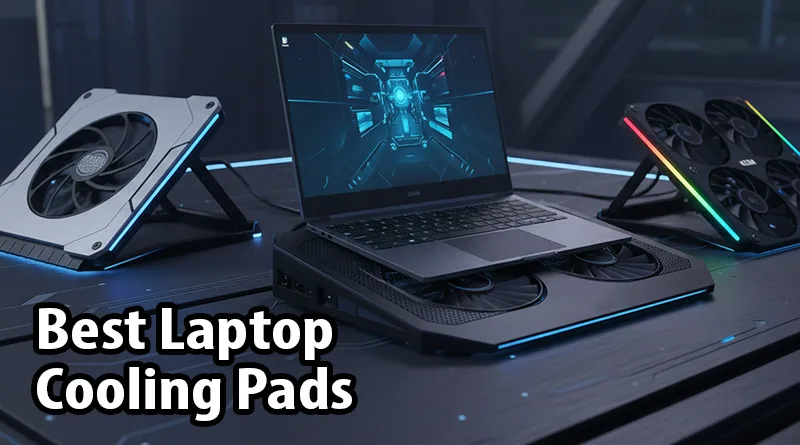


Best Gaming Laptops At CES 2026 RTX 5090 Options Dual Screen Picks Lenovo Legion Pro Rollable Concept. Best Ways To Keep Your Gaming Laptop Cool During Long Sessions Without . The 5 Best Laptop Cooling Pads For Gaming Performance 2026 Best Laptop Cooling Pads.webp. Best Gaming Laptop Cooling Pads 2026 These Coolers Actually Work YouTube . Top 3 Gaming Laptop Cooling Pads In 2026 YouTube
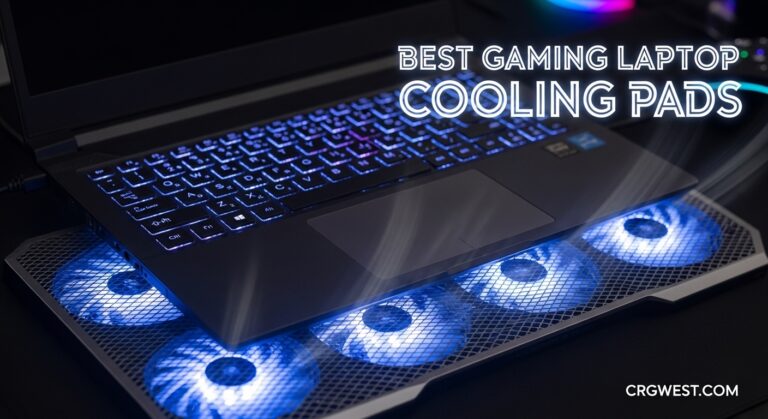

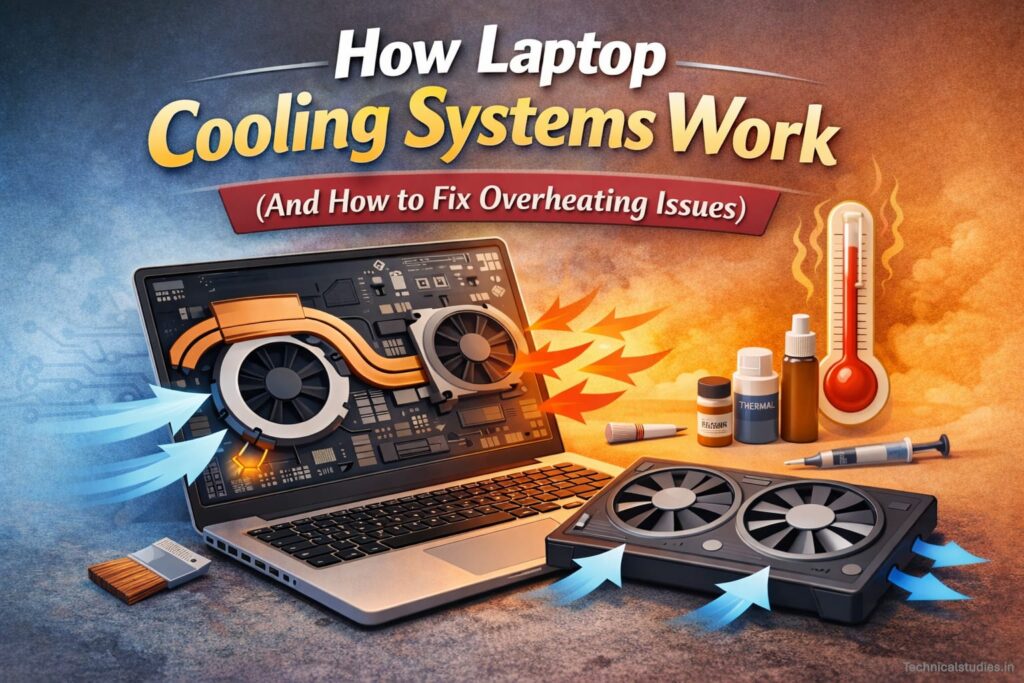
10 Best Gaming Laptop Cooling Pads March 2026 Tested Reviewed Best Gaming Laptop Cooling Pads 768x419 . 5 Best Cooling Pads For Gaming Laptops June 2026 Expert Reviews Fccj Best Cooling Pads For Gaming Laptops 1024x559 . How Laptop Cooling Systems Work And How To Fix Overheating Issues How Laptop Cooling Systems Work 1024x683 . What Temperature Is Too Hot For A Gaming Laptop Robots Net How To Cool My Gaming Laptop 1701886743 . 10 Best Cooling Pads For Gaming Laptops June 2026 Top Picks Best Cooling Pads For Gaming Laptops

How To Keep Your Laptop Cool While Gaming At Ian Stewart Blog How To Keep Gaming Laptop Cool While Gaming Featured Img . How To Keep Laptop Cool While Gaming How To Keep Laptop Cool While Gaming . How To Keep Your Gaming Laptop Cool Complete Cooling Guide Image 1 Gaming Laptops Overheat 1 . How To Keep Your Laptop Cool While Gaming Simple Guide YouTube . How To Cool A Gaming Laptop Robots Net 8 Amazing Cooling Pad For Gaming Laptop For 2023 1701759472


How To Cool Laptop While Gaming 10 Effective Ways 2026 New Project PS 2022 06 . 2026 ASUS ROG Zephyrus Duo Dual 16 Screen Gaming Laptop ROG Myanmar . 7 Best ASUS Gaming Laptops You Can Get In 2026 A Laptops Cooling System 300x178 . Lenovo To Release An Ultrawide Legion Pro Gaming Laptop With Rollable Lenovo Legion Go Pro Rollable . BEST GAMING LAPTOPS IN 2026 REVIEWED AND RANKED Technical 1200 80


How To Cool My Gaming Laptop Robots Net 5 Best Lightweight Gaming Laptop For 2023 1700805620 . CES 2026 Asus ROG Zephyrus Duo Is Finally A Proper Dual Screen Gaming Hero . 15 Best Gaming Laptops Of 2026 That Deliver Power And Portability Mad Top Gaming Laptops 2026 1835q . The Best Cheap Gaming Laptops For 2026 Tested For Gaming Top 3 Gaming Laptops Of 2026 - The Ultimate Guide . How To Cool Laptop While Gaming 10 Effective Ways 2026 New Project PS 2022 06


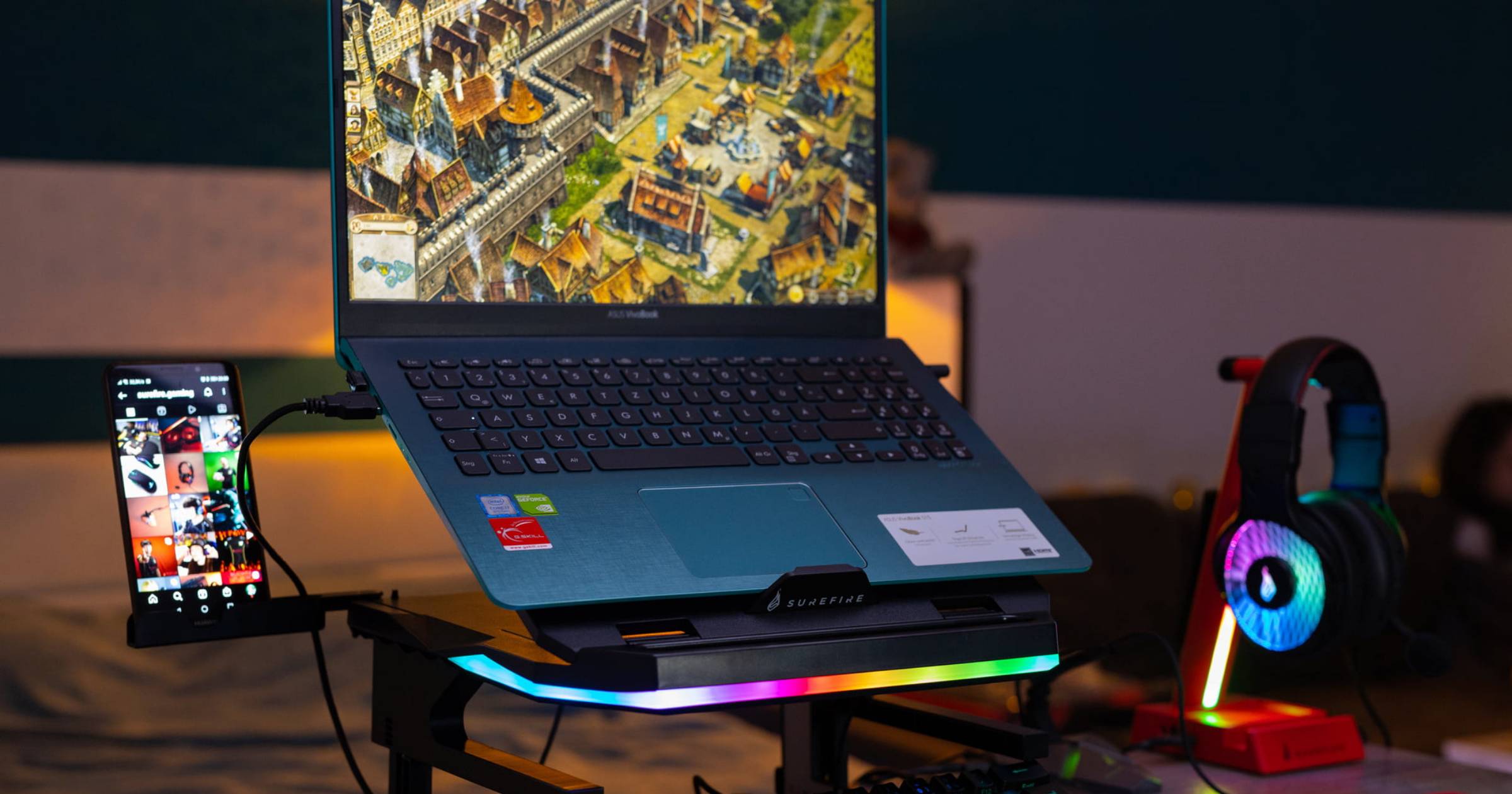
Best Gaming Laptops 2026 Top Picks For Bang For Your Buck Game SL500 . How To Cool Your Gaming Laptop Complete OMEN Guide 123213213 . How To Keep Your Laptop Cool While Gaming Update 05 2026 How To Keep Your Laptop Cool While Gaming Img . How To Make The Gaming Laptop Experience Better A Laptop On A Cooling Pad Seen From The Side . Red Magic Gaming Laptop 16 PRO 2026 Red Magic Gaming Laptop 16 PRO 2026 74474549hdx