Ever wondered if your powerful workstation, typically reserved for demanding professional tasks, can double as your ultimate gaming rig? Many busy professionals, balancing careers and personal life, find themselves with high-end machines capable of much more than spreadsheets and CAD. This comprehensive guide explores the fascinating potential of using workstations for gaming, dissecting performance, hardware compatibility, and cost-effectiveness. Discover how components like powerful CPUs, ample RAM, and professional-grade GPUs, while designed for productivity, can deliver surprisingly robust gaming experiences. We'll delve into the nuances of optimizing these machines, understanding their limitations, and making smart upgrade choices to transform your professional powerhouse into a capable gaming station. If you're looking to unwind with your favorite titles without investing in a separate dedicated gaming PC, this resource is tailored for you, providing practical advice to unlock your workstation's hidden gaming prowess. We explore everything from driver updates to component swaps, ensuring you make informed decisions for a balanced work-play setup.
Can a Workstation PC Offer a Good Gaming Experience?
Yes, absolutely. A workstation PC, despite being designed for professional tasks, often possesses powerful components like high-core-count CPUs and ample RAM that can handle many modern games quite well. While professional GPUs (like NVIDIA Quadro or AMD Radeon Pro) may not have drivers optimized specifically for gaming, their raw power is often sufficient for a satisfying experience, especially for less graphically demanding titles or with adjusted settings. The overall robust build and stable architecture of a workstation can provide a reliable gaming platform for the discerning gamer who balances work and play.
How Do Workstation Graphics Cards Compare to Gaming Graphics Cards for Performance?
Workstation graphics cards prioritize stability, precision, and certified performance in professional applications like CAD, 3D rendering, and scientific simulations. They often feature more VRAM for large datasets and specific hardware for complex computations. Gaming graphics cards, on the other hand, are optimized for high frame rates, graphical fidelity, and features like ray tracing in interactive entertainment. While a high-end professional GPU can have significant raw power, gaming GPUs typically offer better performance per dollar for games due to driver optimizations and architecture specifically tailored for gaming workloads. For peak gaming, a dedicated gaming GPU usually wins.
Is It Cost-Effective to Game on an Existing Workstation Instead of Buying a New Gaming PC?
For many gamers, especially those who already own a powerful workstation, it is highly cost-effective to adapt it for gaming. The workstation already covers the most expensive core components: a robust CPU, motherboard, RAM, and often a solid power supply and cooling system. The primary upgrade needed for optimal gaming is typically a consumer-grade gaming graphics card, which can be a significant investment but still less than a complete new gaming rig. This approach saves money, reduces electronic waste, and provides a dual-purpose machine perfect for the busy adult gamer balancing budgets and responsibilities.
What are the Essential Upgrades to Transform a Workstation into a Gaming Machine?
The most crucial upgrade for transforming a workstation into a gaming machine is a powerful, consumer-grade graphics card, such as an NVIDIA GeForce RTX or AMD Radeon RX series. This will significantly boost frame rates and unlock gaming-specific features. Secondly, ensure you have at least 16GB, but ideally 32GB, of fast RAM. Thirdly, replace any traditional hard drives with a fast NVMe SSD for lightning-quick game load times and system responsiveness. Lastly, check your power supply unit's wattage and available PCIe power connectors to ensure it can support your new gaming GPU. These targeted upgrades yield the biggest gaming performance gains.
Can Workstation CPUs Like Intel Xeon or AMD Threadripper Handle Modern Games Effectively?
Absolutely. Workstation CPUs like Intel Xeon and AMD Threadripper are multi-core powerhouses designed for intense computational tasks. While some older games might favor higher single-core clock speeds (where consumer CPUs sometimes lead), modern games increasingly leverage multiple cores, making these workstation CPUs highly effective. They excel in scenarios involving background tasks like streaming, video recording, or running other applications while gaming. Their robust design also ensures stable and reliable performance during extended gaming sessions, providing a smooth experience for the average gamer.
Are There Specific Workstation Brands or Models Better Suited for Gaming?
Generally, custom-built workstations or those with more standard, less proprietary components tend to be better suited for gaming upgrades. Brands like Dell Precision, HP Z-series, or Lenovo ThinkStation are excellent, but their highly integrated designs can sometimes make GPU upgrades challenging due to proprietary power connectors, BIOS whitelists, or smaller power supplies. Look for workstations with ample case space, standard ATX or EATX motherboards if possible, and a robust, upgradeable power supply. Systems that are less "locked down" will offer more flexibility for adding a powerful gaming GPU and other components without hassle.
How Can I Best Manage Heat and Power Consumption When Gaming on a Workstation?
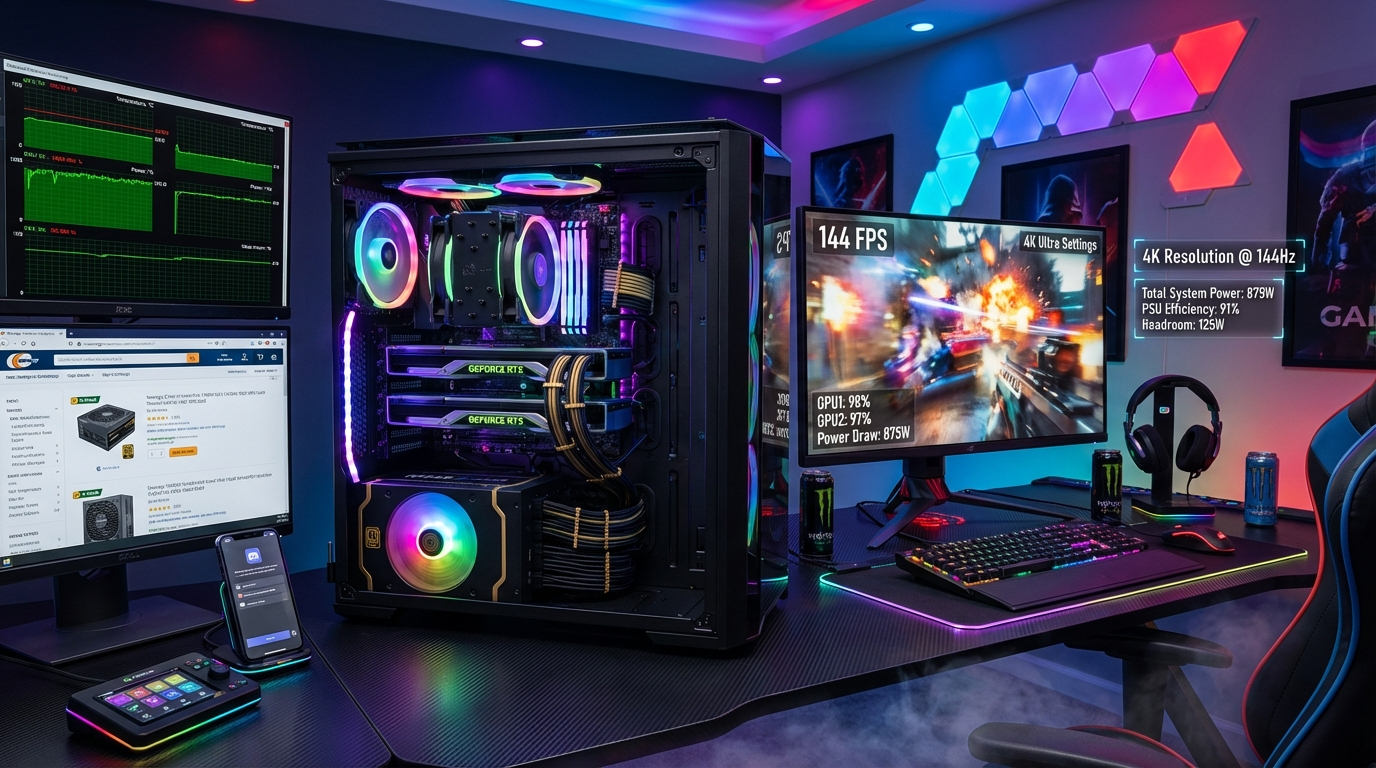
Effective heat and power management are crucial when gaming on a workstation. Start by ensuring good airflow within the case; clean out dust and consider adding more case fans if possible. Monitor CPU and GPU temperatures using software like HWMonitor or Afterburner, especially during intense gaming sessions, to prevent thermal throttling. For power consumption, upgrade your power supply unit (PSU) if installing a high-end gaming GPU that exceeds the original PSU's capacity or connector availability. Additionally, use your operating system's "High Performance" power plan during gaming to ensure your components are receiving adequate power for peak performance without being artificially throttled.
Life as a modern US gamer, especially for those around the age of 36, often means juggling a demanding career, family responsibilities, and a strong desire to unwind with a few hours of gaming. Many of us find ourselves staring at a powerful workstation PC during the day, a machine designed for heavy-duty professional tasks like video editing, 3D rendering, or complex data analysis. A common question echoes in our minds: can workstation be used for gaming? The thought of investing in yet another high-end machine just for play often feels like an unnecessary expense or a space hog. We crave that relaxation, that competitive thrill, or the immersive story without the headache of complex setups or budget-busting upgrades.
The good news is, your workstation might already be a hidden gaming powerhouse, or it could be transformed into one with some smart adjustments. With 87 percent of US gamers regularly playing and averaging over 10 hours a week, and social gaming trends soaring, finding a way to fit gaming into our busy lives is more relevant than ever. This guide is for the practical gamer who values performance, smart spending, and a seamless transition from work to play. We will cut through the hype and provide actionable insights, addressing your pain points from setup woes to performance bottlenecks, helping you unlock your workstation's full gaming potential.
Let's dive into how you can make your workstation pull double duty, ensuring your precious gaming time is spent enjoying titles, not troubleshooting hardware.
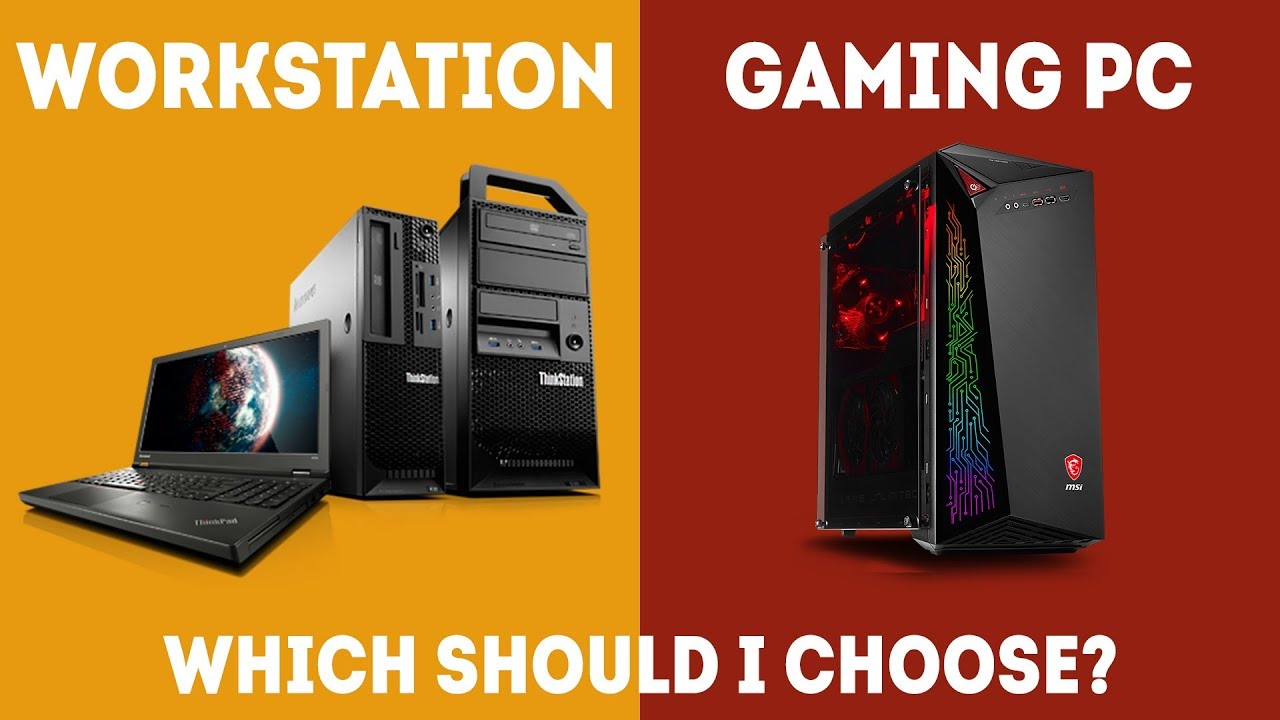
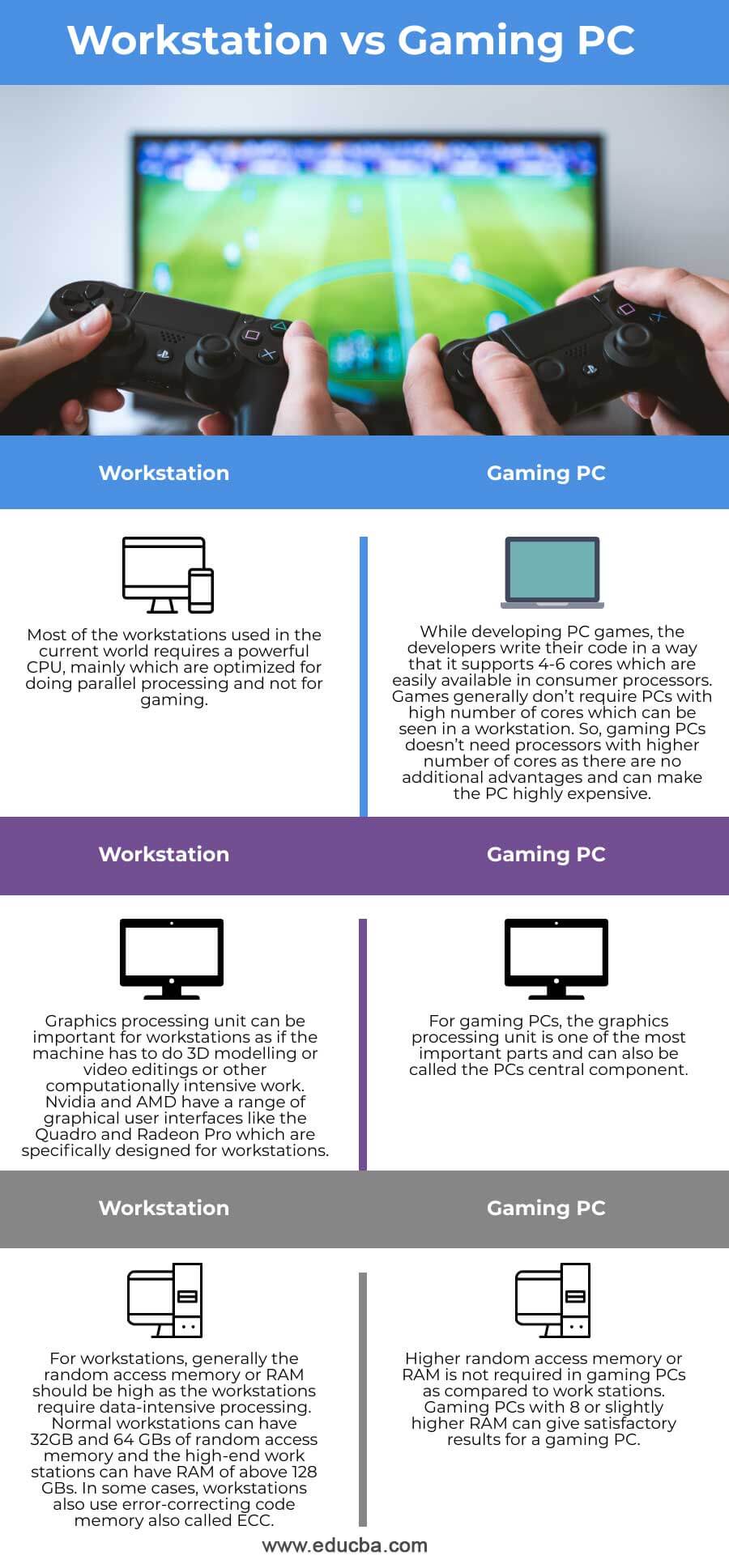
What Exactly is a Workstation PC and How Does it Differ from a Gaming PC?
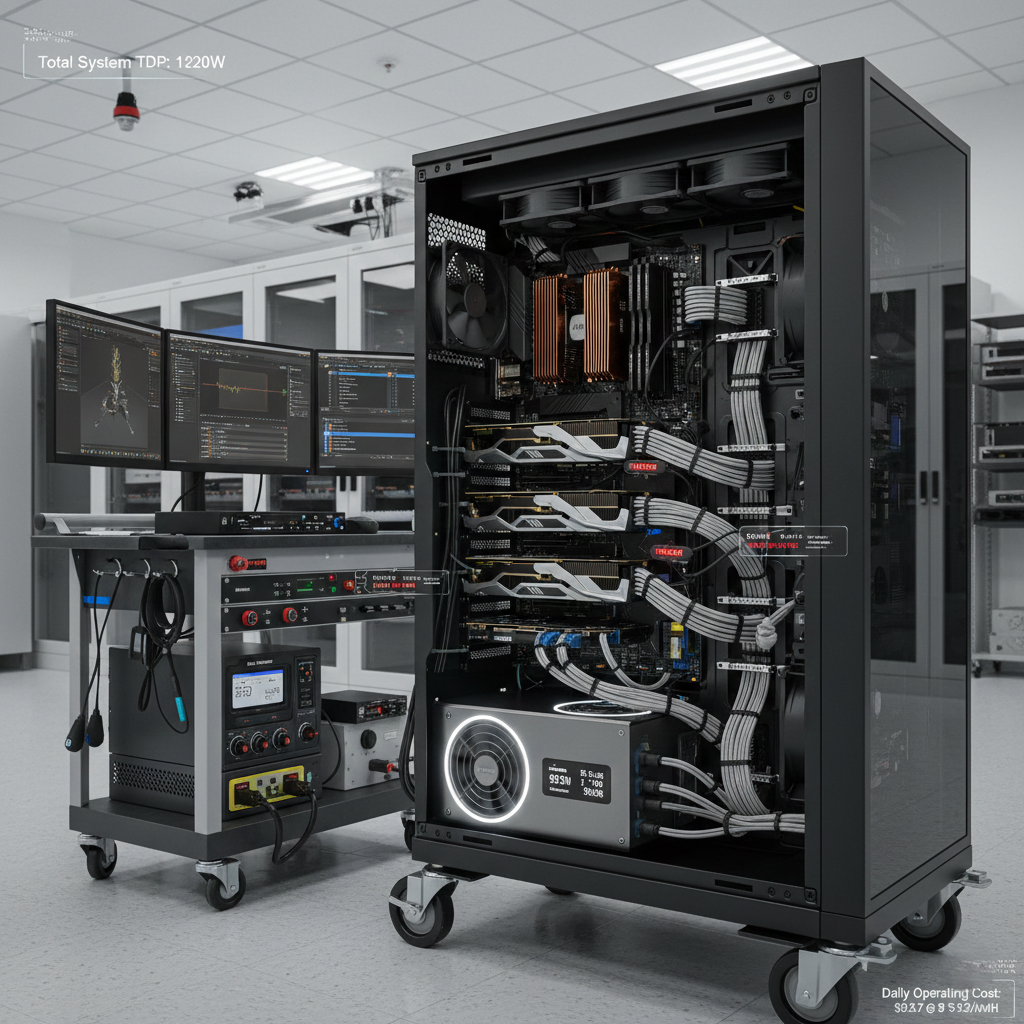
A workstation PC is built for intensive, continuous, and mission-critical tasks in professional environments. Think engineering, scientific research, video production, or financial modeling. They often feature server-grade components for reliability and error correction, such as Intel Xeon or AMD Threadripper CPUs, ECC RAM, and professional GPUs like NVIDIA Quadro or AMD Radeon Pro. Their focus is on stability, longevity, and raw computational power for specific applications.
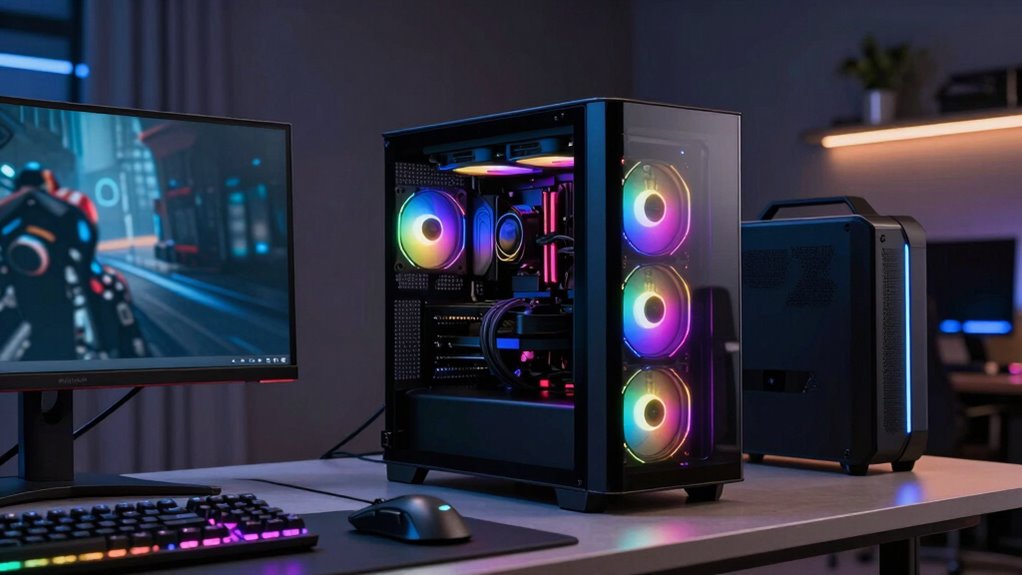
In contrast, gaming PCs are optimized for high frame rates, graphical fidelity, and responsiveness in interactive entertainment. They typically use consumer-grade CPUs like Intel Core i7/i9 or AMD Ryzen 7/9, faster non-ECC RAM, and powerful gaming GPUs like NVIDIA GeForce RTX or AMD Radeon RX. While both types of machines are powerful, their design philosophies, component choices, and driver optimizations cater to very different performance metrics.
Can Workstation Components Truly Handle Modern Games?
Yes, absolutely, many workstation components can handle modern games, some even exceptionally well. Workstation CPUs, especially higher-core count Xeons or Threadrippers, provide excellent multi-threaded performance which benefits many modern titles and background tasks like streaming. Professional GPUs, while optimized for precision and stable drivers in applications like AutoCAD or Blender, often possess significant raw graphical horsepower. For example, a high-end Quadro card can frequently run games at respectable frame rates, although driver optimizations might not be specifically tailored for every game on release day.
The key lies in understanding that while they possess the power, their drivers are not always optimized for the latest gaming features or performance boosts. However, for many popular titles, especially those that are less GPU-bound or older AAA games, a workstation can deliver a very satisfying gaming experience. The prevalence of mobile gaming and social titles like Among Us or Roblox, alongside demanding AAA experiences, means a workstation's capabilities are more than enough for a wide range of playstyles.
What Are the Common Performance Bottlenecks When Gaming on a Workstation?
While workstations are powerful, they often face a few hurdles when gaming. The primary bottleneck is usually the professional-grade GPU. Unlike gaming GPUs, Quadro or Radeon Pro cards prioritize computational accuracy and certified drivers for professional software over raw gaming frame rates or features like ray tracing optimization in consumer games. This means you might get lower frame rates or experience driver-related stutters compared to an equivalent gaming card.
Another potential bottleneck can be CPU clock speed. While workstation CPUs boast many cores, their individual core speeds might be lower than their consumer counterparts, which can impact games that rely heavily on single-core performance. Furthermore, power supply units (PSUs) in workstations are designed for consistent, long-term load for professional tasks, not necessarily the burst demands of high-end gaming GPUs, which could limit future upgrade options without a PSU swap.
Is Upgrading a Workstation for Better Gaming Performance a Viable Option?
Upgrading a workstation for gaming is definitely viable, and often a smart move for budget-conscious gamers. The most impactful upgrade is typically replacing the professional GPU with a gaming-focused graphics card. This immediately addresses the primary bottleneck and unlocks higher frame rates and better game-specific driver support. Before you do, check your workstation's power supply unit (PSU) for sufficient wattage and appropriate PCIe power connectors.
Other beneficial upgrades include increasing RAM, especially if you have less than 16GB, or swapping out a traditional HDD for a faster NVMe SSD for quicker game load times. While CPU upgrades on a workstation motherboard can be complex due to proprietary designs or specific CPU socket requirements, existing high-core-count workstation CPUs are usually more than sufficient for gaming, meaning a CPU upgrade isn't always necessary for good gaming performance.
What Type of Games Run Best on a Workstation Without Major Upgrades?
Many games run surprisingly well on a typical workstation without needing significant upgrades. Think about titles that are less graphically demanding, or those that benefit from strong multi-core CPUs.
- Strategy games like Civilization VI, Stellaris, or Company of Heroes.
- Indie gems such as Stardew Valley, Hades, or Hollow Knight.
- Esports titles like Valorant, League of Legends, CS:GO, or Overwatch 2. These games are optimized for a wide range of hardware.
- Older AAA titles from a few years back that have robust optimization.
- "Cozy games" and social multiplayer experiences that have recently seen a surge in popularity, providing great social interaction without pushing hardware to its limits.
Workstations excel with games that value CPU power and system stability over bleeding-edge GPU features. Even modern open-world games can be playable at medium settings on many workstations, delivering a solid experience for the average gamer looking to unwind.
Are There Any Drawbacks or Risks to Using a Workstation for Gaming?
While powerful, using a workstation primarily for gaming comes with a few considerations. Firstly, warranty issues might arise if you modify the system, especially if you're swapping components in an enterprise-leased machine. Always check your service agreement.
Secondly, thermal management can be a concern. Workstation cases are often designed for consistent airflow under steady professional loads, not the intense, fluctuating heat spikes of gaming. Monitor temperatures closely, especially after extended play sessions. Overheating can lead to system instability or component degradation over time. Thirdly, proprietary hardware and BIOS settings in some branded workstations (Dell Precision, HP Z-series, Lenovo ThinkStation) can make component upgrades, particularly GPUs, more challenging due to power limitations or BIOS whitelists. Finally, power consumption can be higher with high-end workstation components, leading to increased electricity bills compared to a highly optimized gaming rig.
How Can I Optimize My Workstation for the Best Gaming Experience?
Optimizing your workstation for gaming involves a few key steps to maximize performance from your existing hardware:
- Driver Updates: Ensure your GPU drivers are as up-to-date as possible. Even professional cards receive performance improvements that can benefit gaming. Consider using NVIDIA's GeForce Experience or AMD's Adrenalin software if your professional card has a gaming counterpart or is supported.
- Software Optimization: Close all unnecessary background applications. Workstations often have many productivity tools running. Disable unnecessary startup programs and services.
- In-Game Settings: Be realistic with your expectations. Adjust graphical settings like resolution, anti-aliasing, shadow quality, and texture details to find a balance between visual fidelity and frame rate.
- Thermal Monitoring: Use software like HWMonitor or MSI Afterburner to keep an eye on CPU and GPU temperatures. Good airflow is crucial.
- Power Management: Set your Windows power plan to "High Performance" to ensure your CPU isn't throttling during intense gaming sessions.
These adjustments can significantly improve your gaming experience without needing to open your PC case.
What About Future-Proofing a Workstation for Gaming in 2026 and Beyond?
Future-proofing any PC is a challenge, but with a workstation, you have a solid foundation. The multi-core CPUs and robust motherboards often found in workstations are excellent starting points. For long-term gaming viability, consider investing in a high-end consumer GPU. Graphics cards evolve rapidly, so prioritizing a modern GPU with ample VRAM will keep you competitive for several years.
Additionally, ensure your storage is fast (NVMe SSDs are essential for modern games) and you have at least 32GB of RAM. The trend for gaming in 2026 includes more immersive experiences like VR, more demanding titles, and continued growth in social and cross-platform play. A powerful CPU, a modern GPU, and ample fast storage will allow you to adapt to these trends, whether you're jumping into a new AAA release, exploring VR experiments, or just enjoying some free-to-play fun with friends.
Is Building a Hybrid Workstation and Gaming PC a Good Idea?
For many busy gamers, especially those around 36 balancing work and play, a hybrid machine is an excellent and cost-effective solution. Instead of buying two separate high-end machines, you build one powerful PC that leverages the strengths of both workstation and gaming components. This involves choosing a consumer-grade, high-core-count CPU (like an Intel Core i9 or AMD Ryzen 9) and pairing it with a top-tier gaming GPU (NVIDIA RTX or AMD Radeon RX). You get the multi-threaded power for professional tasks and the gaming prowess for entertainment.
Key benefits include:
- Cost Savings: One powerful machine costs less than two.
- Space Efficiency: Less clutter on your desk.
- Flexibility: Seamlessly switch between rendering a project and playing the latest title.
- Upgradability: Consumer platforms often have clearer upgrade paths for GPUs and sometimes CPUs.
This approach gives you the best of both worlds, offering a high-performance machine ready for anything you throw at it, aligning perfectly with the value-for-money mindset of today's gamers.
So, can workstation be used for gaming? The answer is a resounding yes, with a few sensible caveats and potential optimizations. Your professional powerhouse likely has the raw grunt to handle a wide array of games, from casual social experiences to demanding AAA titles. By understanding its strengths, addressing potential bottlenecks, and making smart, targeted upgrades where necessary, you can seamlessly transition from crunching numbers to conquering virtual worlds.
For the average US gamer balancing life's demands, leveraging an existing workstation or building a hybrid system offers a practical, budget-friendly path to enjoyable gaming. Remember, gaming is about relaxation, fun, and connecting with friends, and your workstation is more than capable of delivering that experience.
What's your biggest gaming challenge when using a workstation? Share your experiences and questions in the comments below!
FAQ: Workstation Gaming Quick Answers
Q: Do I need a professional GPU like Quadro for gaming?
A: No, for gaming, a consumer-grade GPU (NVIDIA GeForce RTX or AMD Radeon RX) is almost always superior due to driver optimization and gaming-specific features.
Q: Can a Xeon CPU perform well in games?
A: Yes, many Xeon CPUs, especially those with high core counts, offer excellent multi-threaded performance. While their single-core speed might be lower than top consumer CPUs, they are generally very capable for gaming.
Q: Is it expensive to upgrade a workstation for gaming?
A: The main upgrade cost is typically a gaming GPU. If your workstation already has a powerful CPU and ample RAM, adding a gaming GPU can be a highly cost-effective way to get great gaming performance.
Q: What about thermal issues in a workstation case?
A: Workstation cases may not have optimal airflow for gaming's fluctuating heat. Monitor temperatures and ensure good ventilation. Additional case fans might be a worthwhile investment.
Q: Will my workstation's power supply be sufficient for a new gaming GPU?
A: It depends on the GPU and PSU. Many workstations have robust PSUs, but always check the wattage and available PCIe power connectors required by your chosen gaming GPU. A PSU upgrade might be necessary for very high-end cards.
Q: Can I stream games from my workstation?
A: Absolutely. Workstation CPUs with many cores are excellent for streaming and other background tasks while gaming. Pairing a powerful CPU with a gaming GPU makes for an ideal streaming setup.
Workstation for Gaming Guide Performance Analysis CPU GPU RAM Compatibility Driver Updates Cost Effectiveness Upgrade Potential Game Compatibility Thermal Management Power Supply Considerations Professional vs Gaming GPU Differences Optimizing Settings Hybrid Setup
35


12 Best VR Ready Workstation PC For 2026 That Elevate Your Gaming Top Vr Workstation Pcs P1sw8 . Gaming Workstation PSU Guide 2026 Power 3 1 . Best Gaming Desks 2026 Top Desks For Gaming 2026 YouTube . 40 W24 L30 H Gaming Desk Ergonomic Computer Table Nepal Ubuy AC SL1500 . 8 Best Workstation GPUs For Game Development April 2026 Guide Best Workstation GPUs For Game Development


Computex 2026 ASUS Zeigt KI Mit Petaflop Power Computex 2026 ASUS Zeigt KI Mit Petaflop Power. Modern Gaming And Workstation Setup With LED Lighting And Monitor Modern Gaming Workstation Setup With Led Lighting Monitor 1031729 1150 . Gaming Workstation PSU Guide 2026 Power 3 3 1024x572 . Workstation Personali Per AI E Rendering Cosa Cambia Rispetto A Un PC Workstation 768x512 . Best Budget AI 2026 The Ultimate Guide To Local GenAI Trendlens



Top Preiswerte KI PC 2026 Im Gro En Computer PC Im Praxistest . Three D Desk Shows That Transform At CES 2026 TechPowerUp . Three D Desk Shows That Transform At CES 2026 TechPowerUp . Recoil Quartz Corner Gaming Desk Tzrb222b3 Z113 01 1 . Gaming Desktop PC Guide 2026 Build The Ultimate Gaming Setup 2 2 3

Workstation Vs Gaming PC Which Should I Choose Simple Guide YouTube . Best Workstation For Graphic Design Multiscreen Workstation Setup 768x576 . Gaming Workstation PSU Guide 2026 Power 3 2 . What Is A Workstation Computer Used For Workstation Vs Gaming PC Info . 12 Best VR Ready Workstation PCs For 2026 That Elevate Your Gaming Top Vr Workstation Pcs Nlm7x



Why Desktop PC Prices Are Rising In 2026 And How To Still Get A Good Deal New Year Desktop PC Deals 2026 Main . 12 Best Desktop In 2026 Tested Reviewed Best Budget Graphics Cards For Gaming PC Builds . 64 Kitchen Colors Ideas 2026 Trending Shades And Design Inspiration 61 21.webp. The Best Gaming PC 2026 UK Builds At The Cheapest Prices GamesRadar . Gaming Desk Designs 2024 Ideas For Small Spaces And Bedroom Projects



Der Beste 4K Gaming Pc Den Wir Euch Bieten K Nnen Ist Zur Gamescom IYTG 8ca85 1920 . 2026 ROG Zephyrus G14 G16 Best Gaming Notebooks ROG Myanmar . AEC Magazine 2026 Workstation Survey AEC Magazine Workstation Survey FHD 2026 1 . Best AI 2026 Features Benefits Uses ChatGPT Image May 29 2026 03 44 05 PM.webp. 10 Much Awaited Games Set To Launch In 2026 Games To Launch 2026 1536x967

HP Imagine 2026 New Z EliteBook AI PCs OMEN Gaming HP Worksation 1068x601 . The Best Gaming PC 2026 UK Builds At The Cheapest Prices GamesRadar . Colombian Floating Ambassador To Visit San Diego Archynewsy Two Desktop Control Room Desk . The Ultimate Gaming PC Build 2026 Guide By Xidax 1 Unnamed . Workstation Update 2025 2026 Jack Scott S Blog Pexels 13162091 825x510