Ever found your device storage bursting at the seams or your favorite gaming rig lagging during crucial moments? You are not alone. With 87% of US gamers regularly diving into virtual worlds and many averaging over 10 hours a week, often across multiple platforms like mobile, PC, and console, managing your digital library is key. This comprehensive guide on how to delete a game app provides busy gamers with the practical, no-nonsense steps needed to reclaim space, boost performance, and maintain a clutter-free gaming environment. We understand balancing work, family, and gaming means efficiency is paramount. Learn quick methods for uninstalling games on every major platform, from Android and iOS mobile devices to Windows PCs, PlayStation, Xbox, and Nintendo Switch, ensuring your gaming life stays optimized and enjoyable without the unnecessary digital baggage. Discover how to delete game apps effectively, preserve your precious save data, and keep your systems running smoothly for the ultimate gaming experience.
What's the simplest way to delete a game app on my smartphone?
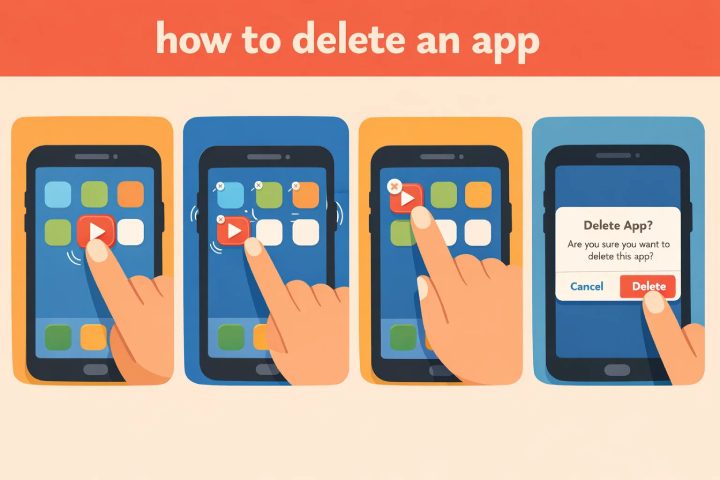
For most smartphones, the quickest method is to long-press the game app icon on your home screen or app drawer until an 'Uninstall' option or 'X' appears. Drag the app to the uninstall area or tap the 'X' and confirm. This works for both Android and iOS, providing a fast way to free up space on the go without diving into settings menus.
How do I remove PC games installed through Steam or Epic Games?
For games installed via launchers like Steam or Epic Games, open the respective launcher, go to your 'Library' or 'Installed' section. Right-click the game (Steam) or click the three dots next to it (Epic), then select 'Uninstall'. The launcher handles the entire process, ensuring a clean removal of game files and often preserving cloud saves.
Will deleting a game app erase my saved progress?
Generally, no, deleting a game app does not erase your saved progress on modern platforms. Save data is typically stored separately from the game application, often locally on your device or backed up to cloud services like PlayStation Plus, Xbox Cloud Saves, or Steam Cloud. Always check that cloud saving is enabled for peace of mind before uninstalling.
What's the difference between archiving and deleting games on Nintendo Switch?
On Nintendo Switch, 'Archiving Software' removes the game data but keeps its icon on your Home menu and importantly, retains all save data. This is great for temporary space-saving. 'Deleting Software' removes the game data and its icon, but also retains your save data separately. Both preserve your progress, but archiving offers a quicker re-download without losing the icon.
Why should I consider deleting old game apps even if I have lots of storage?
Even with ample storage, deleting old game apps improves system performance by reducing background processes, optimizing search times, and ensuring your device isn't bogged down by unused data. It also declutters your digital library, making it easier to find and launch the games you genuinely want to play, leading to a more streamlined and enjoyable gaming experience.
Can I delete pre-installed or system game apps from my device?
Many pre-installed or system-level game apps (often called bloatware on Android) cannot be fully deleted without rooting your device, which is not recommended for most users. However, you can often 'Disable' them (on Android) or 'Offload' them (on iOS) via your device settings, which stops them from running and frees up some space, effectively hiding them from your app drawer.
What if a game app won't delete or shows an error?
If a game app won't delete, first try restarting your device and attempting the deletion again. On PC, you might need to use the 'Programs and Features' section in the Control Panel or a third-party uninstaller. For mobile, ensure the app isn't running in the background. If persistent, check the game's official support forums or your device manufacturer's help resources for specific troubleshooting steps.
Hey fellow gamers! Ever felt that frustrating pinch when your device tells you storage is full, or your once-smooth gaming experience starts stuttering during a critical match? You are definitely not alone. In 2026, with an estimated 87% of US gamers playing regularly—often logging over 10 hours a week across various platforms like mobile, PC, and consoles—managing our digital libraries has become a crucial skill. We know life is busy; balancing careers, families, and personal commitments means your gaming time is precious. The last thing you need is a sluggish system or endless update downloads because of old, forgotten game apps hogging valuable space.
This guide is your practical playbook for understanding exactly how to delete a game app effectively, no matter your platform. Think of it as a digital decluttering session for your gaming life. We will cover everything from mobile devices to your powerful PC rig and beloved consoles. We will also address common worries like losing your cherished save data and provide tips to keep your systems optimized. Let's get that storage freed up and your gaming performance back on track!
Why Should I Delete Game Apps Anyway?
Deleting game apps is more than just making room; it is about optimizing your entire gaming ecosystem. First, and most obviously, it frees up precious storage space. Many modern titles are massive, and uninstalling even one can make a huge difference, especially on mobile devices or consoles with limited internal storage. Secondly, it can significantly improve device performance. Clutter on your hard drive can lead to slower load times, system lag, and overall decreased responsiveness, which nobody wants in a competitive or immersive game.
For the busy gamer, digital decluttering also means better organization. Imagine quickly finding the game you actually want to play, rather than scrolling through dozens of titles you finished months ago or only played once. It reduces mental load and ensures your gaming experience is about relaxation and fun, not frustration. With new games constantly launching and mobile gaming still dominating a large portion of the US market, keeping your digital space tidy is a smart move.
How Do I Delete Game Apps on Android Devices?
Deleting games on Android is straightforward, with a couple of main methods:
- From the App Drawer/Home Screen:
Find the game app icon you want to delete. Tap and hold the icon until a menu appears. Look for an 'Uninstall' option or a trash can icon. Drag the app icon to the 'Uninstall' area, then confirm the action when prompted. This is often the quickest method for individual apps.
- Via Settings:
Go to your phone's 'Settings' menu. Tap on 'Apps' or 'Apps & notifications' (wording might vary slightly by Android version and manufacturer). Find the game app in the list and tap on it. Select 'Uninstall' and confirm. This method is useful if you want to also check app storage usage or clear cache/data before uninstalling.
Remember, uninstalling the app deletes the core application files. Game-related data like saves or profiles might linger in your device's internal storage or cloud backups, depending on the game. Always check for a 'Clear Data' option within the app info settings if you want a complete wipe before uninstalling.
What's the Best Way to Remove Game Apps from my iPhone or iPad?
Apple devices offer equally simple ways to remove game apps:
- From the Home Screen:
Locate the game app icon you wish to delete. Tap and hold the icon until all app icons start to jiggle. A small 'X' or '-' button will appear in the top-left corner of the app icon. Tap the 'X' or '-' button, then select 'Delete App' to confirm. This will remove the app and all its data from your device.
- From App Library (iOS 14 and later):
Swipe left past all your home screens to access the App Library. Find the game app (you can use the search bar at the top). Tap and hold the app icon, then choose 'Delete App' from the contextual menu.
- Via Settings:
Go to 'Settings' > 'General' > 'iPhone Storage' or 'iPad Storage'. You will see a list of your apps and how much space they consume. Find the game app, tap on it, then choose 'Delete App'. This method is great for identifying space-hogging games quickly. You might also see an 'Offload App' option, which removes the app but keeps its documents and data, allowing you to reinstall it later without losing progress.
For gamers juggling work and family, knowing these quick methods means you can free up space during a lunch break or while waiting for a meeting to start, ensuring your device is ready for your next gaming session.
How Do I Uninstall PC Games from Windows?
PC gamers often have the largest libraries, making effective uninstallation critical:
- Using Windows Settings (Windows 10/11):
Go to 'Start' > 'Settings' > 'Apps' > 'Apps & features'. Find the game in the list (you can use the search bar or sort by size). Click on the game, then select 'Uninstall'. Follow any on-screen prompts from the game's uninstaller.
- Through the Control Panel (Older Windows versions or for stubborn apps):
Open 'Control Panel' > 'Programs' > 'Programs and Features'. Locate the game in the list, right-click it, and select 'Uninstall/Change'. Follow the uninstaller wizard.
- Via Game Launchers (Steam, Epic Games, GOG Galaxy, etc.):
Most modern PC games are managed by digital storefronts. This is often the cleanest way to uninstall:
- Steam: Open Steam Library, right-click the game, select 'Manage' > 'Uninstall'.
- Epic Games Launcher: Go to 'Library', click the three dots next to the game, select 'Uninstall'.
- GOG Galaxy: Open 'Owned games', click the game, then 'More' > 'Manage installation' > 'Uninstall'.
Using the launcher ensures all associated files are usually removed correctly. Always restart your PC after significant uninstalls to clear any lingering processes.
Can I Delete Games from my PlayStation 5 or PlayStation 4?
Yes, managing storage on consoles is vital, especially with massive game sizes:
- PlayStation 5:
Go to the 'Game Library' from the Home screen. Find the game you wish to delete. Highlight the game, press the 'Options' button on your controller, and select 'Delete'. Confirm the deletion. PS5 also allows you to manage storage by going to 'Settings' > 'Storage' > 'Console Storage' or 'Extended Storage' to see what's taking up space and delete from there.
- PlayStation 4:
Navigate to the game icon on your Home screen. Highlight the game, press the 'Options' button on your controller, and select 'Delete'. Confirm the action. Alternatively, go to 'Settings' > 'System Storage Management' > 'Applications', select the game, and choose 'Delete'.
Remember that deleting a game app from your console typically does not delete its save data, which is usually stored separately or backed up to the PlayStation Plus cloud if you have a subscription.
How Do I Remove Game Apps on Xbox Consoles?
Xbox consoles, including Xbox Series X/S and Xbox One, make game deletion straightforward:
- From My Games & apps:
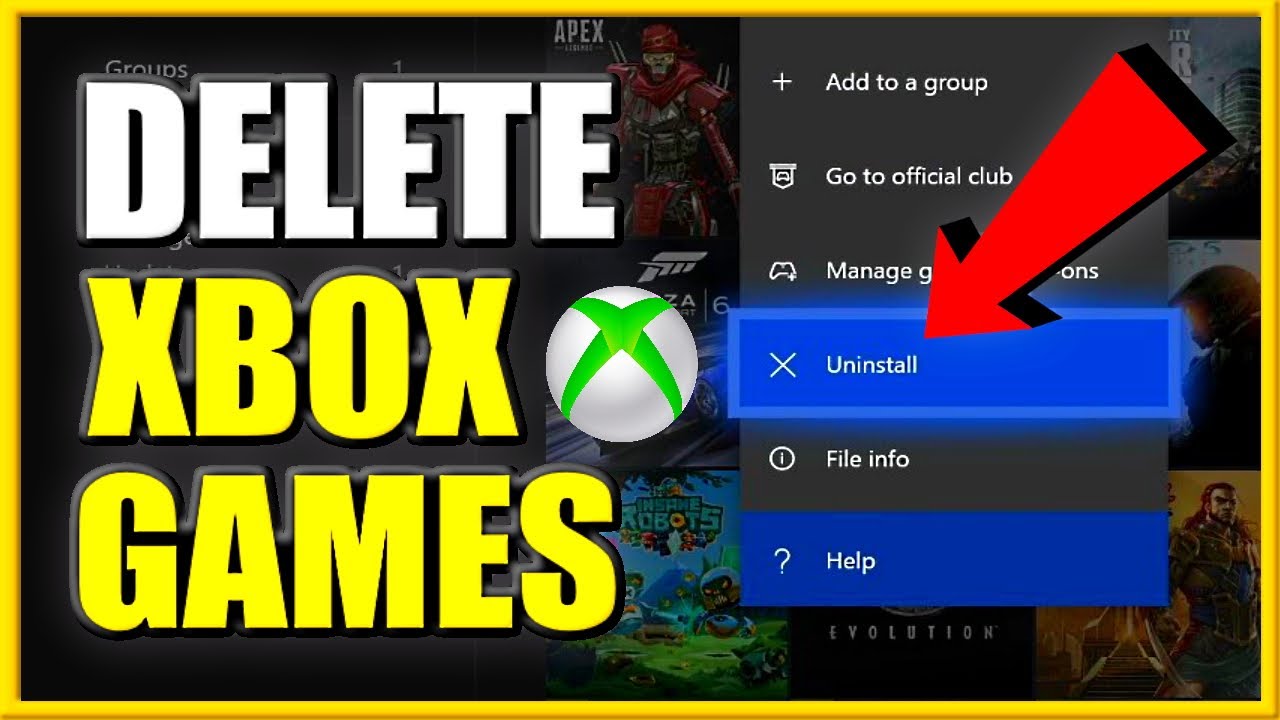
Press the Xbox button to open the guide. Select 'My games & apps' > 'See all'. Navigate to 'Games'. Highlight the game you want to delete. Press the 'Menu' button (the one with three horizontal lines) on your controller. Select 'Uninstall' > 'Uninstall all'.
- Managing Storage:
From 'My games & apps' > 'See all', go to 'Manage' > 'Storage devices'. Select the storage device where the game is located (e.g., 'Internal' or an external drive). Highlight the game, press the 'Menu' button, and select 'Uninstall'. This view helps you quickly see which games are occupying the most space.
Like PlayStation, Xbox usually stores your game saves separately, often in the cloud, so deleting the game app itself will not erase your progress.
What About Nintendo Switch? How Do I Archive or Delete Games?
Nintendo Switch offers two distinct options for clearing space:
- Archiving Software:
This is the recommended first step. Archiving removes the game application but keeps its icon on your Home menu and retains any save data. This is useful if you think you will play the game again later. To archive, go to 'System Settings' > 'Data Management' > 'Manage Software'. Select the game and choose 'Archive Software'.
- Deleting Software:
Deleting removes both the game application and its icon from your Home menu. Crucially, it *also* keeps your save data! To delete, go to 'System Settings' > 'Data Management' > 'Manage Software'. Select the game and choose 'Delete Software'.
Nintendo's approach is great for gamers who worry about losing progress. Save data is almost always kept separate from the game app on the Switch, a relief for those who value their hard-earned progress in titles like The Legend of Zelda: Tears of the Kingdom or Super Mario Odyssey.
Will Deleting a Game App Also Delete My Save Data?
This is a common and very valid concern for gamers! Generally, no, deleting a game app does *not* automatically delete your save data. Most modern gaming platforms (PC via cloud saves, PlayStation Plus, Xbox Cloud Saves, Nintendo Switch) separate game application files from save data. Save data is usually stored:
- Locally: In a separate folder on your device's internal storage.
- Cloud: Automatically uploaded to a cloud service (e.g., Steam Cloud, PlayStation Plus, Xbox Live, Nintendo Switch Online) if you have the subscription or feature enabled.
However, there are exceptions, especially with older PC games or some mobile titles that tightly integrate saves with the app data. Always check the specific game's documentation or your platform's support pages if you are unsure. For peace of mind, ensure cloud saving is enabled on your consoles and PC launchers. For mobile, verify if the game links to a Google Play Games or Apple Game Center account, as these often back up progress.
Are There Reasons Not to Delete a Game App Immediately?
While decluttering is good, sometimes it pays to pause before hitting that uninstall button:
- Reinstallation Time: If you frequently switch between a few large games, remember that reinstalling a 100GB+ title takes significant time and bandwidth. If you expect to play it again very soon, it might be better to keep it.
- Updates: Some games have massive patches. If you delete and then reinstall, you will download the entire game *plus* all updates, potentially more data than just letting the game update itself.
- Digital Rights Management (DRM) or Online Dependencies: A rare concern, but some older or specific PC games might have DRM that makes reinstallation tricky if servers are down or licenses are hard to verify. For the vast majority of modern titles, this is not an issue, especially if managed through major launchers like Steam or Epic.
- Limited Play Time: For gamers who balance work and life, if you know you only have an hour or two a week for a specific game, ensuring it is ready to go (not requiring a fresh download) might be worth the storage cost.
Consider your personal gaming habits and internet speed before mass-deleting everything!
How Can I Prevent My Device from Filling Up with Game Apps Again?
Prevention is always better than cure. Here are some pro tips for managing your gaming library and avoiding future storage woes:
- Regular Audits: Make it a habit to review your installed games once a month. Ask yourself: When did I last play this? Will I realistically play it again soon?
- Utilize External Storage: For PC, PS5/PS4, and Xbox, invest in an external hard drive or SSD. Move games you are not actively playing to these drives. For Switch, a high-capacity microSD card is essential.
- Clear Cache and Data: On mobile devices, periodically clear the cache for large game apps. This can free up significant space without deleting the entire game. Go to App Info > Storage > Clear Cache.
- Be Selective with Downloads: With free-to-play games and subscription services, it's easy to download dozens of titles. Be more discerning. If a game doesn't grab you in the first hour, consider uninstalling it.
- Use Cloud Gaming Services: Services like Xbox Cloud Gaming or NVIDIA GeForce NOW allow you to stream games without installing them, saving huge amounts of local storage. This is a growing trend, especially among busy gamers who want instant access without commitment.
By adopting these habits, you will spend less time managing storage and more time doing what you love: gaming!
FAQ Section
How do I delete game data but keep the app?
On Android, go to Settings > Apps > [Game Name] > Storage > Clear Data. On iOS, you generally cannot delete specific game data without deleting the app, unless the game itself has an in-app option. Console saves are usually separate from the app.
Can I recover a deleted game app?
Yes, if you purchased it digitally, you can always redownload it from your platform's store (Google Play, App Store, Steam, PlayStation Store, Xbox Store, Nintendo eShop) in your 'Purchased' or 'Library' sections. You do not need to buy it again.
Does deleting a game free up all its space?
Mostly, yes. Deleting the app removes its primary installation files. However, sometimes residual files like configuration data or obscure cached items might remain. For a truly clean sweep, manual deletion of associated folders (on PC) might be needed, but this is rarely necessary.
Is uninstalling a game different from deleting it?
The terms are often used interchangeably. 'Uninstalling' typically refers to the process on PC/Android, while 'deleting' is common on iOS/consoles. Functionally, both mean removing the application from your device. Nintendo Switch also has 'archiving' which removes the game but keeps the icon and save data.
What's the fastest way to mass delete game apps?
On mobile, manually deleting from the home screen is fast for a few apps. On PC, using Windows Settings > Apps & features, or within your game launcher's library, allows you to quickly select and uninstall multiple titles one by one. Consoles require individual deletion.
Do deleted games count towards my download limit if I reinstall?
Yes, if you reinstall a game, it counts as a new download against any data caps your internet service provider might have. This is why managing your library wisely is important for those with limited bandwidth.
What should I do if a game won't uninstall?
On PC, try using a third-party uninstaller tool or checking the game's official support page for specific removal instructions. On consoles/mobile, restart your device and try again. Sometimes corrupted files can prevent standard uninstallation.
So there you have it, fellow gamers! Knowing how to delete a game app efficiently across all your platforms is a vital skill in today's ever-expanding gaming landscape. It is not just about freeing up space; it is about optimizing your entire experience, ensuring your devices run smoothly, and reducing frustration so you can get straight to the fun. By applying these tips and making digital hygiene a regular part of your routine, you are setting yourself up for a much more enjoyable and stress-free gaming life.
What's your biggest gaming challenge when it comes to managing your digital library? Comment below!
Reclaim storage space on mobile, PC, and consoles. Improve device performance and reduce lag. Learn platform-specific methods for deleting game apps on Android, iOS, Windows, PlayStation, Xbox, and Nintendo Switch. Understand how to manage game save data. Optimize your gaming environment for better efficiency and enjoyment. Prevent storage issues and digital clutter with smart game management tips.
35

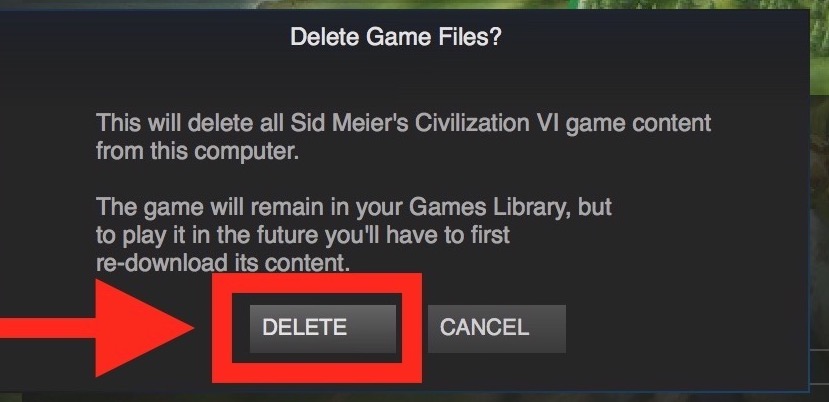


How To Delete Games On Mac Free Up Space In 2026 Allthings How How To Uninstall Microsoft Store Games Image 1 1 759x609 . How To Delete Uninstall Games On PS5 2026 YouTube . How To Delete Games On Mac Free Up Space In 2026 Howto Delete Steam Games . Oculus Quest 2 How To Delete Games Apps YouTube . How To Delete A Game On Roblox 2026 Easy Method YouTube


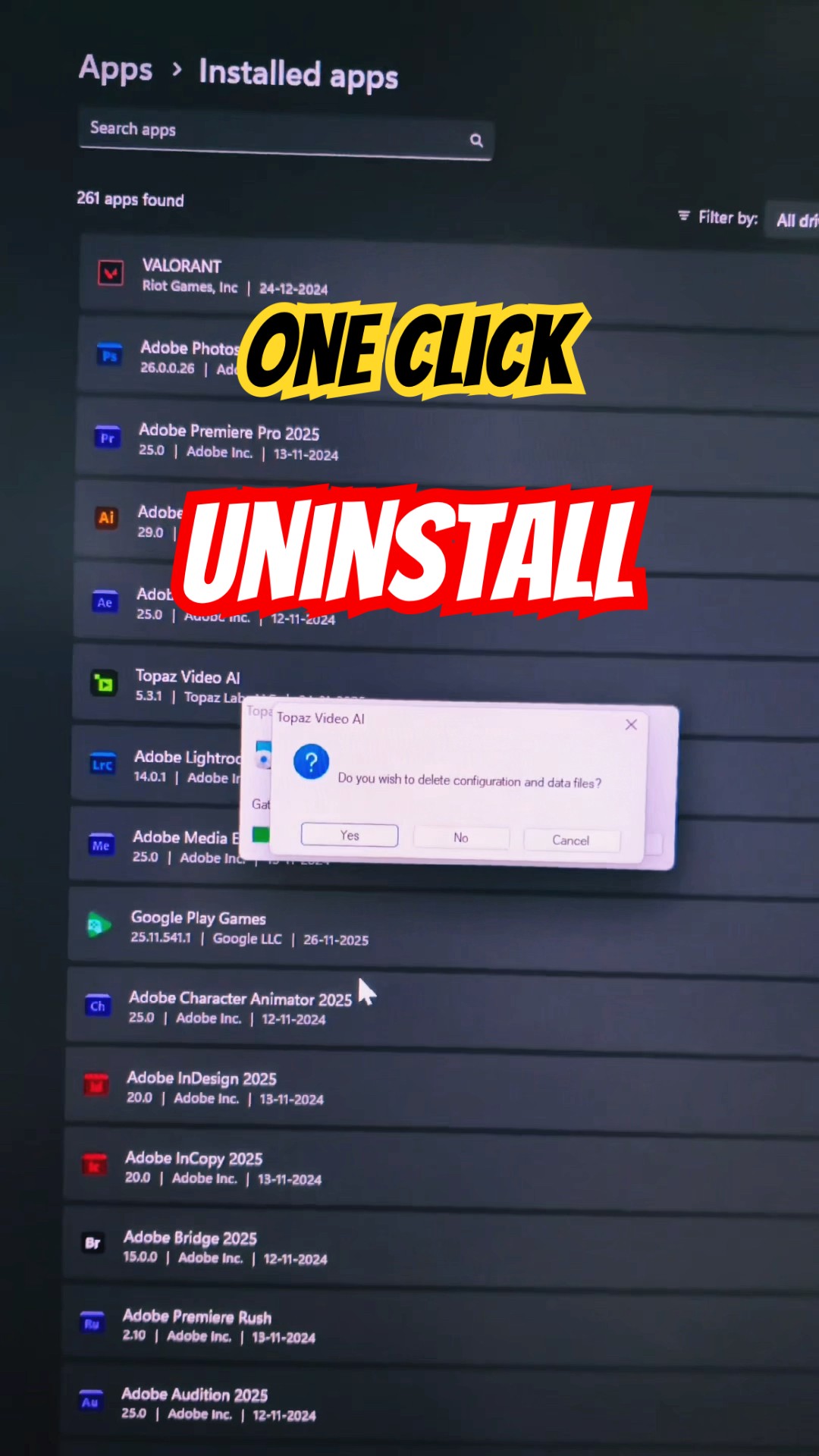
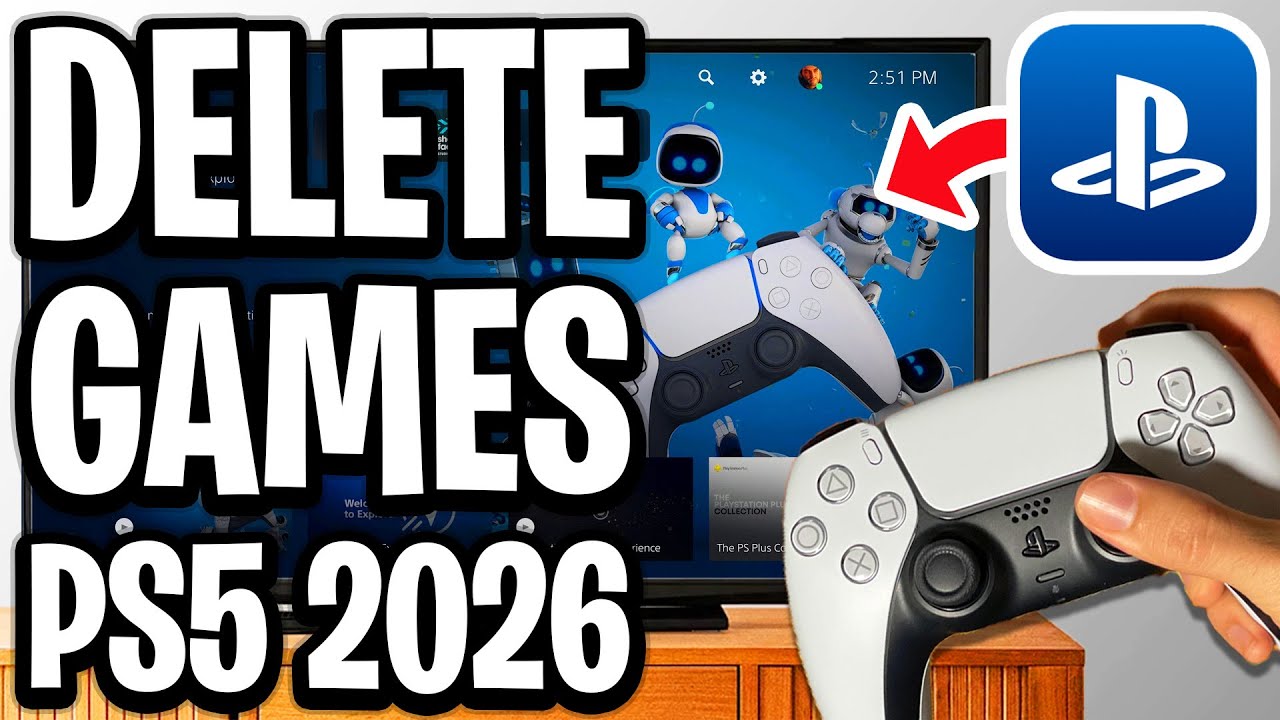
How To Delete Games On IPhone 2026 Step By Step Tutorial YouTube . How To Delete Games On PC Step By Step Guide Uninstall Settings How To Uninstall Games On Pc . How To Delete All Games On IPhone 2026 Step By Step Tutorial YouTube . PC Laptop Se App Uninstall Kaise Kare 2026 How To Delete Software Oardefault . How To Delete Games On PS5 2026 Full Guide YouTube


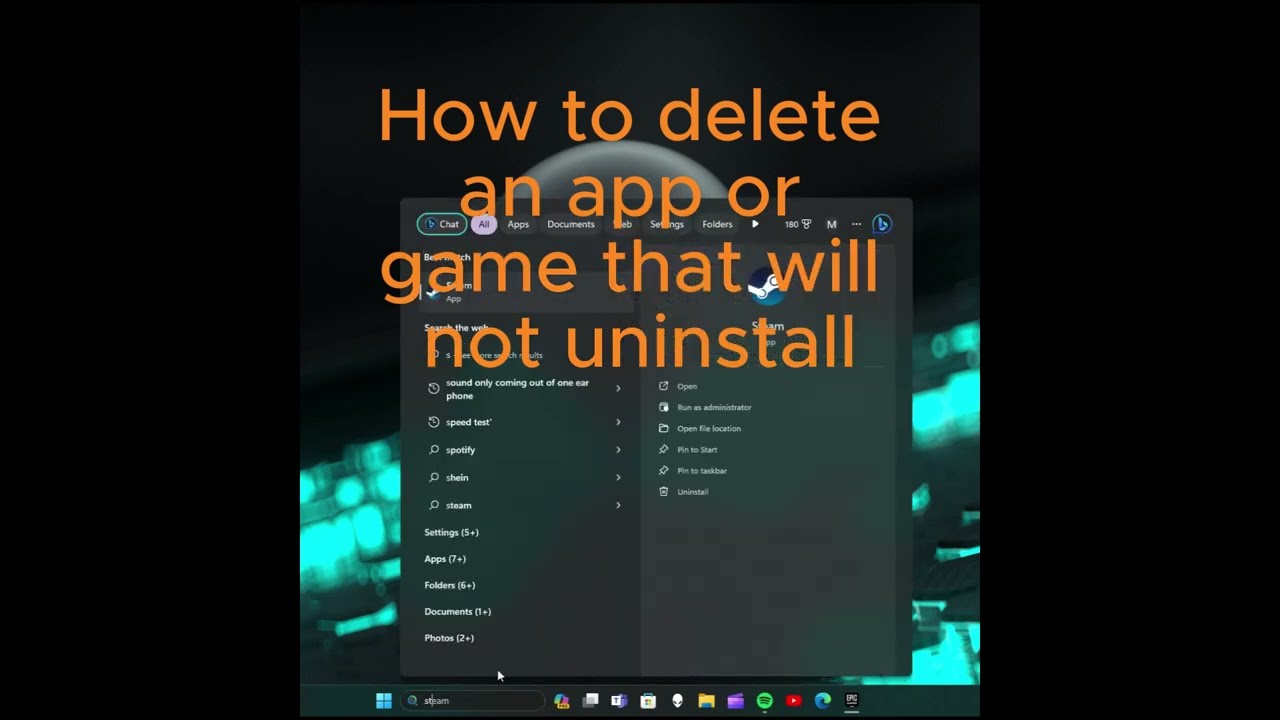

How To Delete Games On Mac Free Up Space In 2026 . How To Completely Delete Game From Steam In Windows YouTube . How To Uninstall A Game Or App That Will NOT Delete PC YouTube . How To Delete A Game Or App In Bluestacks 5 How To Uninstall App In . How To Delete A Game On Your Xbox From The Xbox Phone App Settings




How To Delete Games On IPhone YouTube . How To Delete Games On EA Desktop App YouTube . How To Delete Games You Played On Roblox 2026 UPDATED YouTube . How To Uninstall A Game From The Xbox App On Phone Free Up Storage . How To Remove Game From Epic Library EASY Epic Games Tutorial



How To Uninstall Delete Games All At Once On STEAM Easy Tutorial . How To Delete Games On Mac Free Up Space In 2026 . How To DELETE GAMES On XBOX ONE Uninstall APPS Easy Method YouTube . Delete Games From IPhone Tricks To Quickly Erase Game Data Cache Delete Games On Iphone . How To Delete Games On Mac Free Up Space In 2026



How To Delete Games On Mac Free Up Space In 2026 Delete Apps On Mac 3.webp. How To Delete Games On Facebook Quick Cleanup Guide Position Is How To Delete Games On Facebook Position Is Everything 1536x864 . How To Delete Roblox Games From Continue 2026 Easy Step By Step Guide . How To Delete Apps From PC Laptop Full Guide YouTube . How To Remove App From Game Center Full Guide YouTube




How To Permanently Remove Game From Steam Account Easy Guide YouTube . How To Delete Games On PS5 Using PS App On Your Phone Easy Guide . How To Delete An App A Parent S Guide To Managing Kids Devices How To Delete An App . How To Remove Linked Games From Facebook How To Remove Apps Games . How To Remove Games From Google Play Games Updated Tutorial YouTube